StreamElements
StreamElements overlays live in your web browser, and you add them to your streaming app with one link. To put an element in an overlay, you paste its code into a StreamElements custom widget. The app makes the code and gives you a copy button for each part, so there’s nothing to write yourself.
Get the code from the app
Section titled “Get the code from the app”There are two ways to the same code. More formats is the quickest, and it doesn’t change any of your settings.
This way works whatever you picked under What do you stream with?.
-
In Elements, click the element you want. It opens in the editor.
-
Click More formats, under Add to my stream. For a live widget from a pack, the button and its window are called Get the files instead.
-
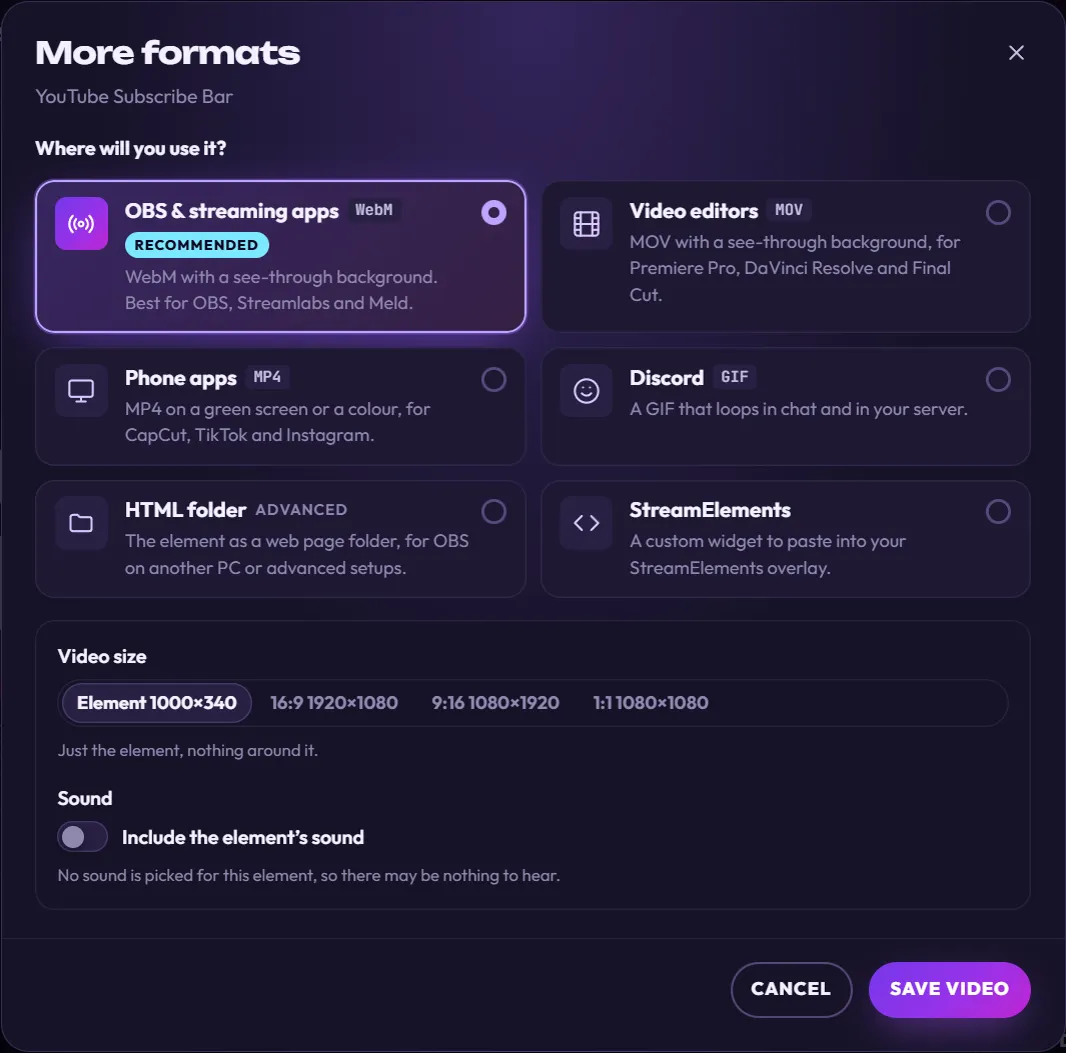
Under Where will you use it?, click StreamElements.
-
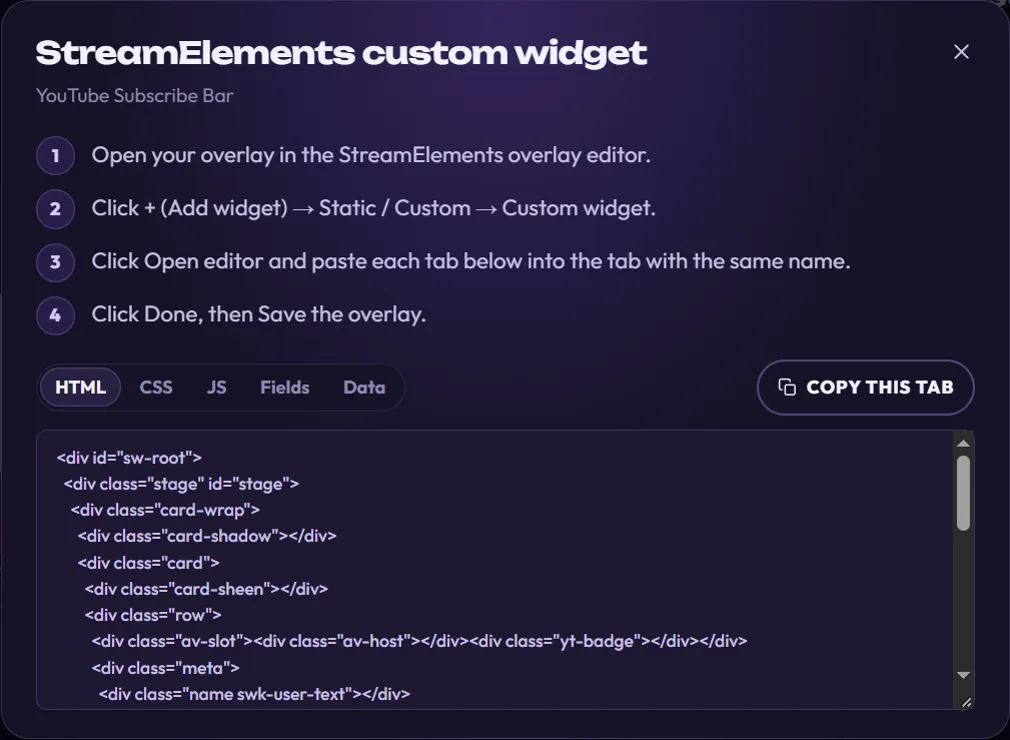
Click Show the code. The StreamElements custom widget window opens, with the code and four short steps.
This way sets What do you stream with? to Something else, which changes what Add to my stream opens for every element. If you also add elements to OBS with one click, use More formats instead, so Add to my stream keeps opening the Add to OBS window.
Already picked Something else? Skip to step 3.
-
Click your channel name at the top right of the app. If you haven’t set up your channel yet, it says Set up your channel. The Your channel panel opens.

-
Scroll down to What do you stream with?, click Something else, then click Save. You only do this once.
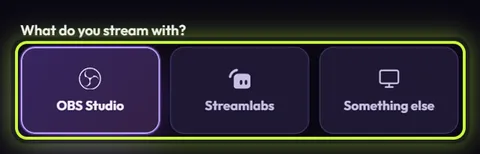
OBS Studio is picked in this picture. Click Something else instead. -
In Elements, click the element you want, then click Add to my stream at the bottom right of the editor.
-
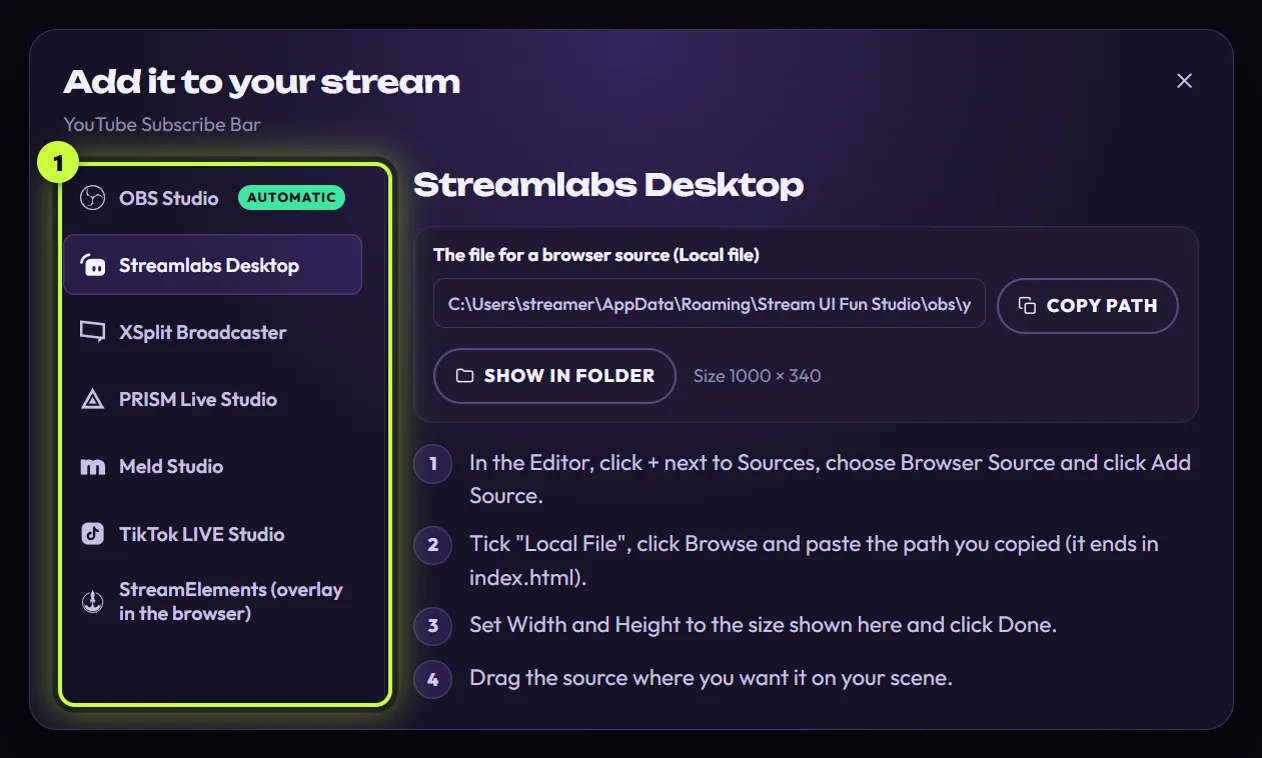
The Add it to your stream window opens on Streamlabs Desktop, the first app in the list. That’s normal: it does this every time. In the list of apps on the left (1), click StreamElements (overlay in the browser).
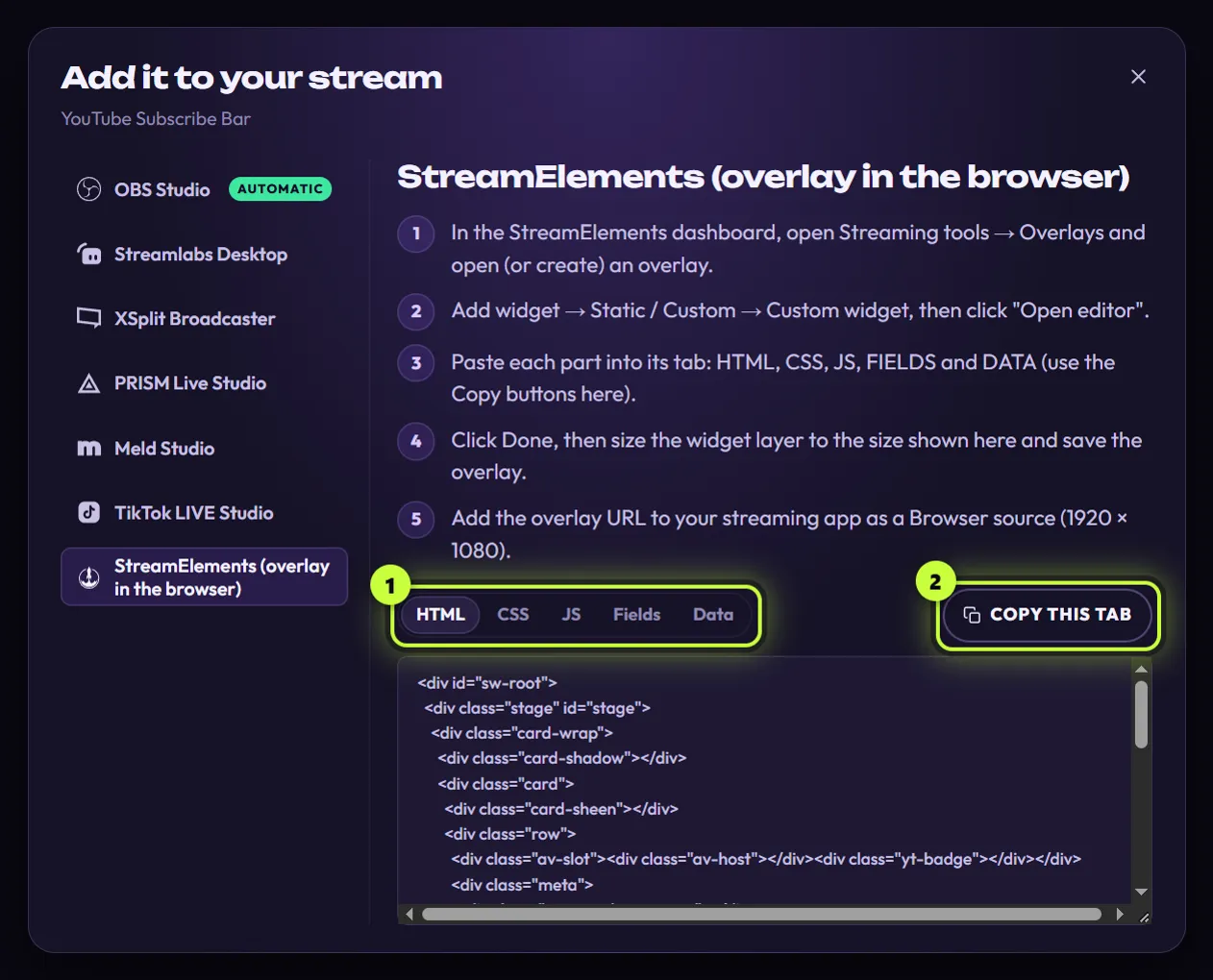
The code comes in five parts, one per tab: HTML, CSS, JS, Fields and Data (1). Copy this tab (2) copies the part you’re looking at. It says Copied for a moment.
Your settings, your channel picture and the fonts are all built into the code, so there’s nothing to upload.
Find the element’s size
Section titled “Find the element’s size”The app’s StreamElements steps ask you to size the widget layer “to the size shown here”, but the size isn’t shown next to the code. Easy ways to find it:
- In More formats: before you click StreamElements, the size shows under Video size, for example Element 1000×340. (Live widgets don’t have this row.)
- In the Add it to your stream window: click Streamlabs Desktop in the list. The size shows next to Show in folder, for example Size 1000 × 340. Then click StreamElements (overlay in the browser) again.
- Or look the element up in the Free elements catalog, which lists every size.
Add it in StreamElements
Section titled “Add it in StreamElements”Here’s the full process, with a little more detail. (The window you open from More formats shows a shorter version of these steps.)
-
Go to streamelements.com and log in. In your dashboard, open Streaming tools → Overlays. Open an overlay, or create a new one. If you create one, choose 1920 × 1080.
-
In the overlay editor, click + (Add widget) and choose Static / Custom → Custom widget. With the new widget selected, click Open editor in its settings.
-
Paste each part into its tab, one at a time:
- In the app, click HTML and then Copy this tab.
- In StreamElements, click the HTML tab, press Ctrl + ACmd + A to select what’s already there, and press Ctrl + VCmd + V to paste over it.
- Do the same for CSS, JS, Fields and Data.
-
Click Done. With the widget still selected, find its position and size settings in the panel on the left (often called Position, size & style) and type the element’s width and height. Drag the widget where you want it, then save the overlay (look for Save at the top of the editor).
-
Copy your overlay’s link (URL): in your list of overlays, look for a link icon or Copy URL on the overlay. Then, in your streaming app, add a Browser source (a source that shows a web page), paste the link into URL, and set it to 1920 × 1080. For OBS, that’s + under Sources → Browser.
After pasting, the element’s settings (colors, text, fonts and so on) show up in the widget’s panel on the left in StreamElements. You can fine-tune them there. Those tweaks stay in StreamElements: the app doesn’t see them.
How it plays in StreamElements
Section titled “How it plays in StreamElements”- It plays once each time the widget loads: when your streaming app opens the overlay (for example when it starts) and when you refresh the overlay’s browser source.
- Between plays, it’s see-through. After the animation it disappears, so an “empty” overlay is normal. Elements that stay on screen, like Socials Bar, animate in and then stay.
- There’s no repeat timer here. Play it again every doesn’t work in StreamElements, and the app doesn’t add a play-on-scene-switch either.
- Follows, subs and tips don’t play it, and neither does StreamElements’ Emulate. Free elements are animations you play on cue, not alerts, so StreamElements’ test events won’t make them play. How elements play explains this in more detail.
Using OBS Studio anyway? Adding the element to OBS directly gives you the repeat timer, Play now and hotkeys without any code.
Update it after you change something
Section titled “Update it after you change something”The code is a snapshot: changing the element in the app doesn’t change the widget in StreamElements.
-
Make your changes in the app’s editor.
-
Open the code again (either way above) and paste all five tabs again, each over the old code, like the first time.
-
Click Done and save the overlay.
-
Refresh the overlay’s browser source in your streaming app. The element plays with your changes.
Test it before you go live
Section titled “Test it before you go live”-
In your streaming app, switch to the scene with the overlay’s browser source.
-
Refresh the browser source (in OBS: double-click it and click Refresh cache of current page). Watch the element play once.
-
Check that it’s the right size and in the right spot.
Happy with it? Don’t refresh the overlay again while that scene is live: your viewers would see it play.
If something looks wrong
Section titled “If something looks wrong”- The overlay stays empty. The element probably already played. Refresh the overlay’s browser source and watch it.
- Nothing shows at all, even after a refresh. Check that every tab got its own part, pasted over the sample code, and that you saved the overlay.
- It’s cut off or the wrong size. Set the widget layer to the element’s size, and the browser source in your streaming app to 1920 × 1080.
- Copy this tab didn’t work. The app says “Couldn’t copy. Select the text and press Ctrl+C instead.” Click in the code box, press Ctrl + ACmd + A, then Ctrl + CCmd + C.
- The window shows an error instead of the code, for example “Something went wrong. Try again, or restart Stream UI Fun Studio if it keeps happening.” Close the window and open it again. If it keeps happening, restart the app.
More fixes are in Troubleshooting.