Quick start: your first element on stream
In this guide you set up your channel, make a free element your own and put it in OBS Studio, ready to play on stream. It takes about five minutes, and you don’t need any design or tech skills.
Your first element, step by step
Section titled “Your first element, step by step”-
Set up your channel.
The first time you open the app, the Your channel panel slides in. Fill it in once and every element shows your channel. Go through it in this order:
- Channel name: your name the way you want it on stream.
- Where do you stream?: click your main platform, then type your handle in the box under it. The @ is already there for you.
- Channel picture (at the top of the panel): to use the picture you already have on your platform, click Get it from and your platform’s name, like Get it from YouTube. It’s there for Twitch, YouTube, TikTok, X and Kick, and it works once you’ve typed your handle. Or click Upload picture to pick an image. Drag and zoom it in the circle, then click Use this picture.
- Followers & subscribers (optional): click Fetch counts to show your real count on elements like “12.4K subscribers”. You can also type the number in.
- What do you stream with? (scroll to the bottom of the panel): OBS Studio is already picked. Using Streamlabs or another app? Pick Streamlabs or Something else instead.
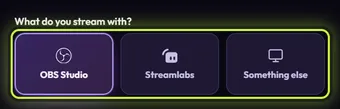
Click Let’s go.
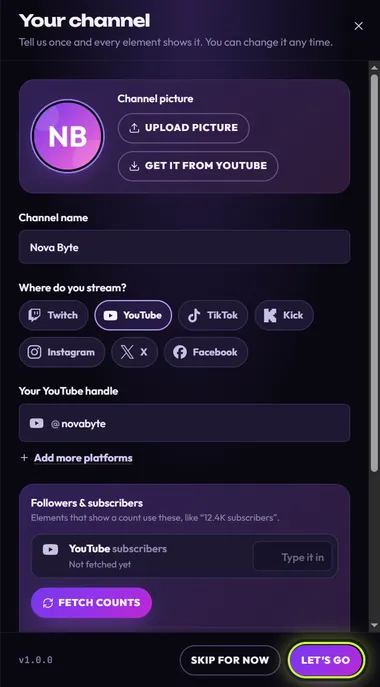
Everything filled in. Let’s go saves it. -
Pick an element.
The Elements tab now shows the free elements for your platform, already showing your name and picture. The app switches on the Free filter and your platform for you. To see everything, click All and All platforms above the cards. Right after setup you may see “Adding your channel to … cards…” for a few seconds while the pictures update.
Hover a card to watch it play, then click the one you like. A follow tag or a subscribe bar is a great first choice.
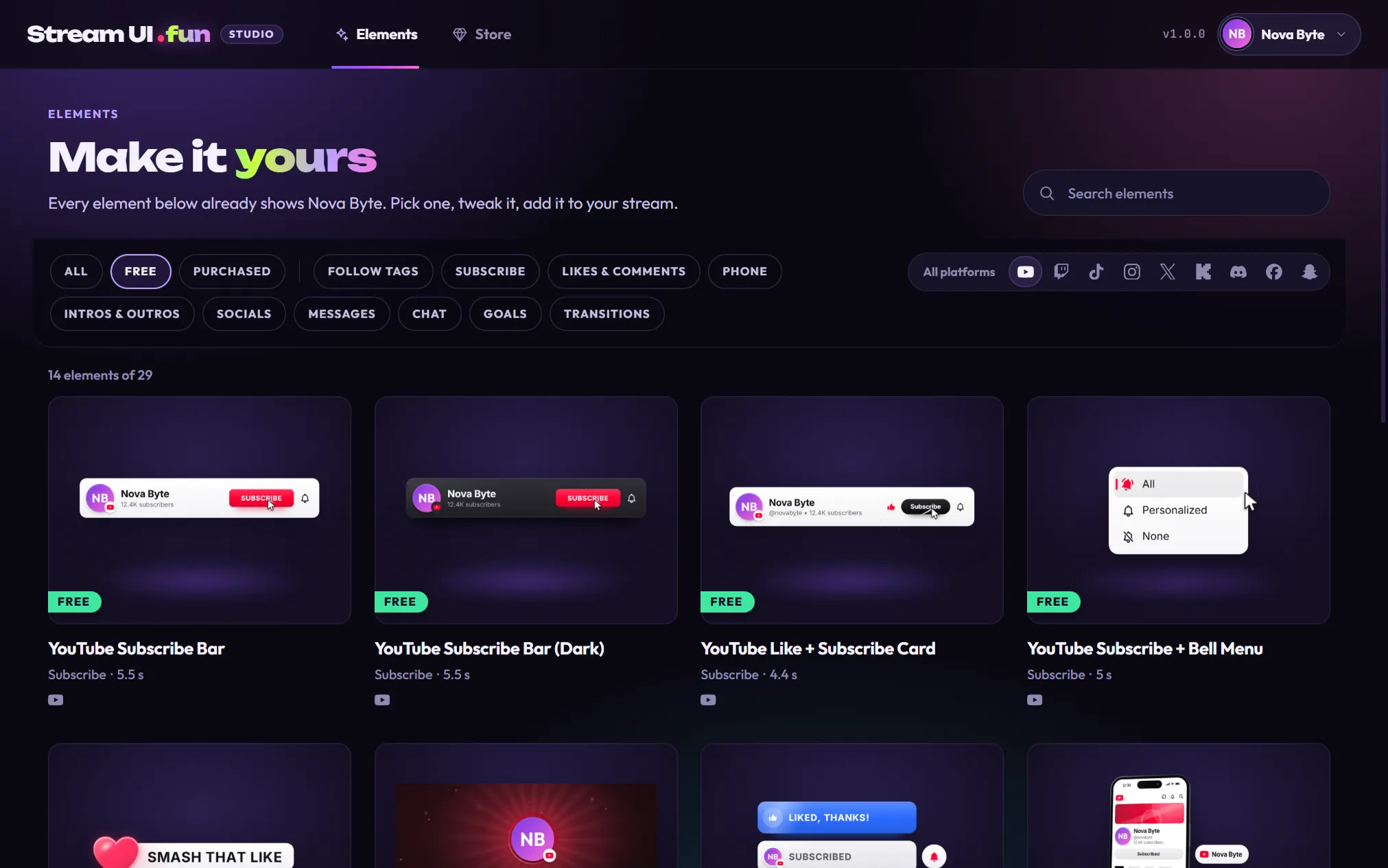
-
Make it yours.
The editor opens. On the left, the preview plays your element over a sample stream. On the right, Customize shows the few things you can fill in. Your channel name and picture are already there, marked From your channel.
Change any text and the preview updates straight away. There’s no Save button: every change saves by itself.
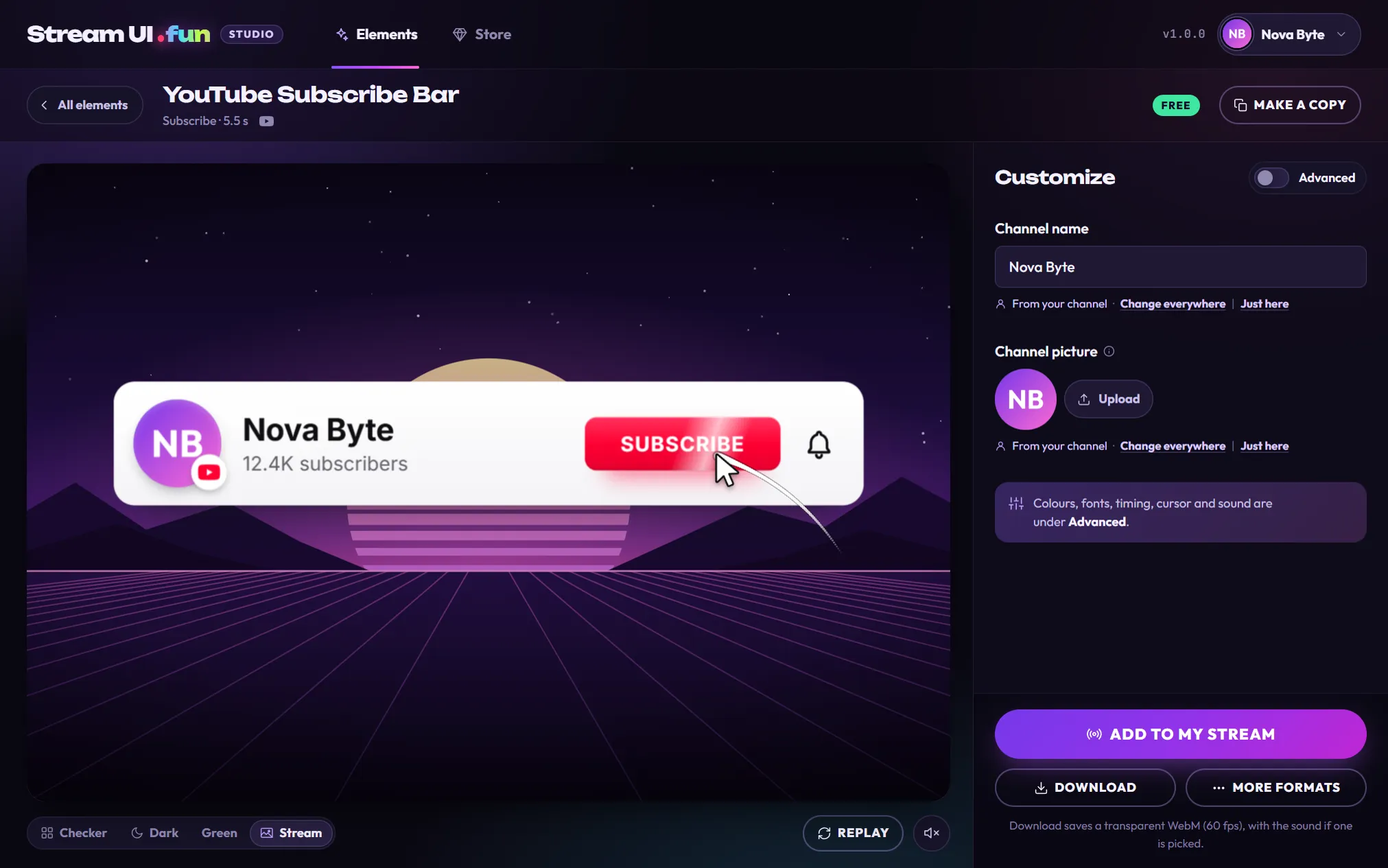
The editor. Want other colors, fonts or a sound? Turn on Advanced at the top of the panel. -
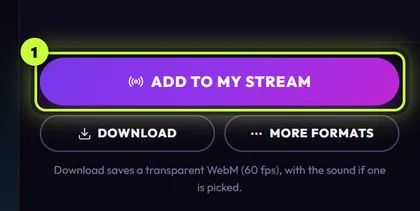
Click Add to my stream.
It’s the big button at the bottom right of the editor (1). Because OBS Studio is picked under What do you stream with?, the Add to OBS window opens and starts looking for OBS.
-
Connect to OBS (first time only).
Make sure OBS Studio is open on this computer. The app talks to OBS through its WebSocket server, a connection built into OBS 28 and newer that lets apps add things to your scenes. The window checks again every few seconds, so you don’t need to close it while you fix something.
If the window says Do this Connected to OBS (green, at the top) You’re connected. Go to step 6. Open OBS Studio Start OBS. The window notices as soon as it’s ready. Turn on OBS’s connection In OBS, open Tools → WebSocket Server Settings, tick Enable WebSocket server and click Apply. Back in the app, click I’ve done it. You’ll usually see OBS needs its password next. OBS needs its password Click Auto-detect password. The app finds the password in OBS’s settings on this computer and connects. 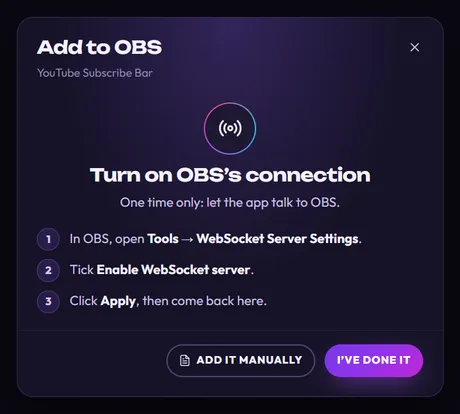
The one-time step most people see: turning on OBS's connection. 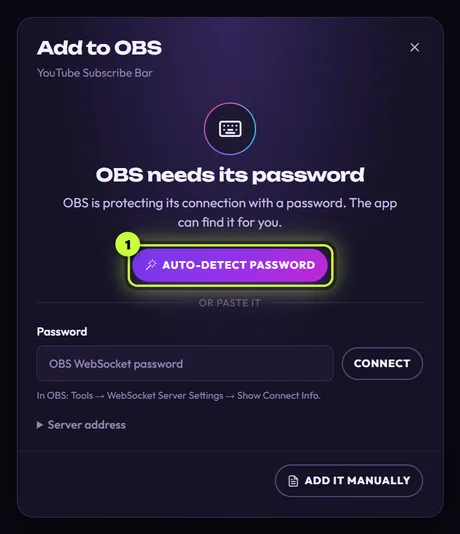
Usually next: click Auto-detect password (1). Seeing something else, like Update OBS Studio or Can’t reach OBS? Connect the app to OBS explains every message.
-
Choose the scene and the spot.
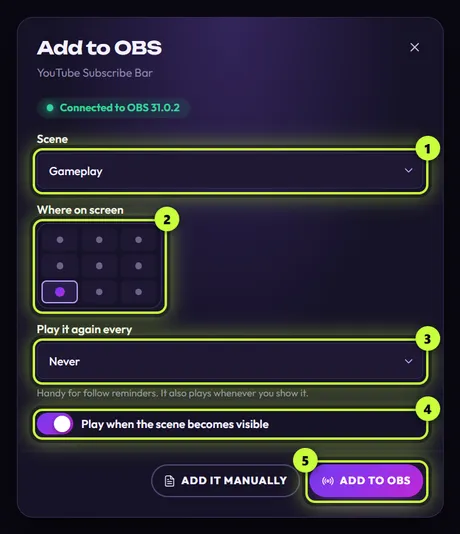
- Scene (1): the OBS scene to add it to. A scene is one of your layouts in OBS, like “Gameplay” or “Just Chatting”. The list starts on the scene that’s live right now (in Studio Mode, on your Preview scene).
- Where on screen (2): click a dot to pick a corner, an edge or the middle. The element keeps its own size and sits a little in from the edge. Full-screen elements, like YouTube Channel Intro, say This one fills the whole screen. instead.
- Play it again every (3): leave it on Never for now, or pick 5 to 60 minutes for a regular reminder.
- Play when the scene becomes visible (4): leave it on. It plays the element each time its scene goes live, and it’s also what makes OBS hotkeys and Stream Deck buttons play it.
-
Click Add to OBS (marked 5 in the picture above).
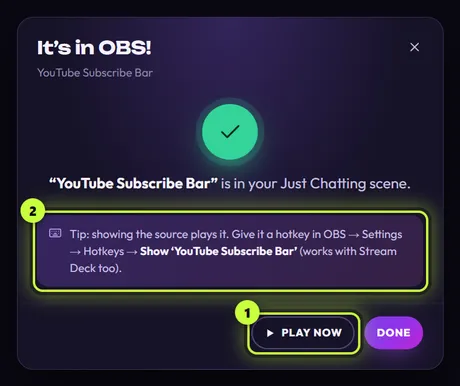
The app adds the element to your scene as a browser source: an OBS source that shows a web page, in this case your element. It’s placed where you chose, and the window changes to It’s in OBS!
-
Click Play now (1) and watch OBS.
Your element plays in OBS and a small message says Playing in OBS. Click Done when you’re happy.
Don’t see it? OBS may be showing a different scene. Switch OBS to the scene you picked in step 6, then click Play now again.
That’s it: your first element is on stream. Its card now shows an In OBS badge. If you change the element later, the app updates it in OBS for you. See Change an element that’s already in OBS.
When does it play on stream?
Section titled “When does it play on stream?”Free elements are animations you play on cue. They are not alerts: they don’t play by themselves when someone follows, subscribes or tips. An element in OBS plays:
- when its scene goes live, for example when you switch to it, or when you show its source with an OBS hotkey or a Stream Deck button (both need Play when the scene becomes visible on);
- every few minutes, if you picked a time under Play it again every;
- when you click Play now;
- when OBS starts or reloads the source.
The easiest way to play one whenever you like is a hotkey. An element plays when its source goes from hidden to shown in the live scene, so you need two keys. In OBS, open Settings → Hotkeys, find Hide ‘your element’s name’ and Show ‘your element’s name’, and give each one a key. To play it, press Hide, then Show. The tip in the It’s in OBS! window (step 8) points there too. Step by step: Hotkeys and Stream Deck. More about play events in How elements play.
Not using OBS Studio?
Section titled “Not using OBS Studio?”If you picked Streamlabs or Something else in step 1, Add to my stream opens step-by-step guides instead of the OBS window. There’s one for each of these apps: Streamlabs Desktop, XSplit Broadcaster, PRISM Live Studio, Meld Studio, TikTok LIVE Studio and StreamElements.
Picked the wrong one? Click the profile chip (your name, top right) to open Your channel, change What do you stream with? and click Save.
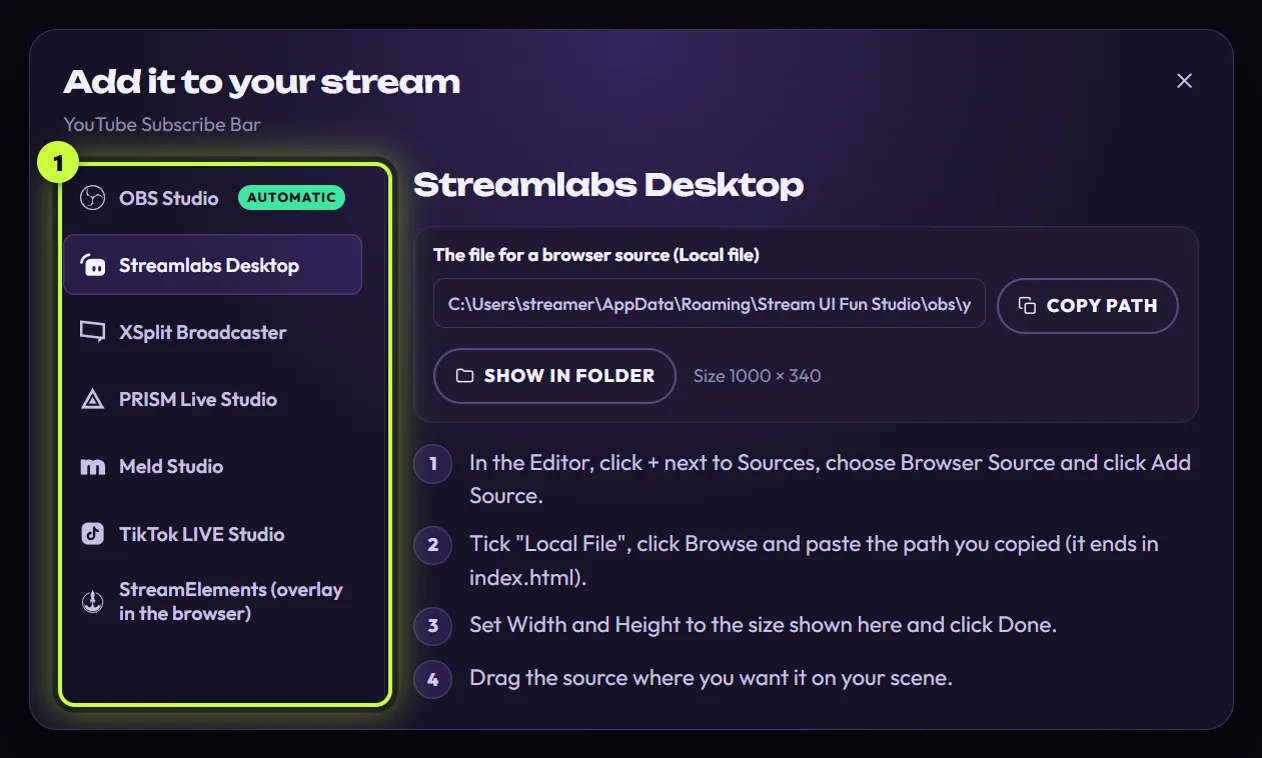
Start with Pick your streaming app.
Want a video file instead? In the editor, Download saves your element as a video with a see-through background (WebM, 60 fps), with its sound if you picked one. More formats has MOV for video editors, MP4 for phone apps like CapCut, and GIF for Discord. See Download a video.
OBS on a different computer? The one-click setup only works when OBS runs on the same PC as the app. See Add to OBS by hand for two-PC setups.