Choose a format
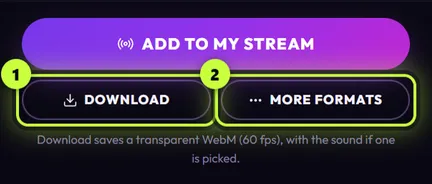
Download always saves a see-through WebM. When you need something else, like a file for your video editor, a green-screen MP4 for your phone, a GIF for Discord or a vertical video, use More formats. You pick where you’ll use the video, and the app picks the right format.
Save a video in another format
Section titled “Save a video in another format”-
Open the element in the editor: click it in the Elements tab.
-
At the bottom right of the editor, under Add to my stream, click More formats (2).
-
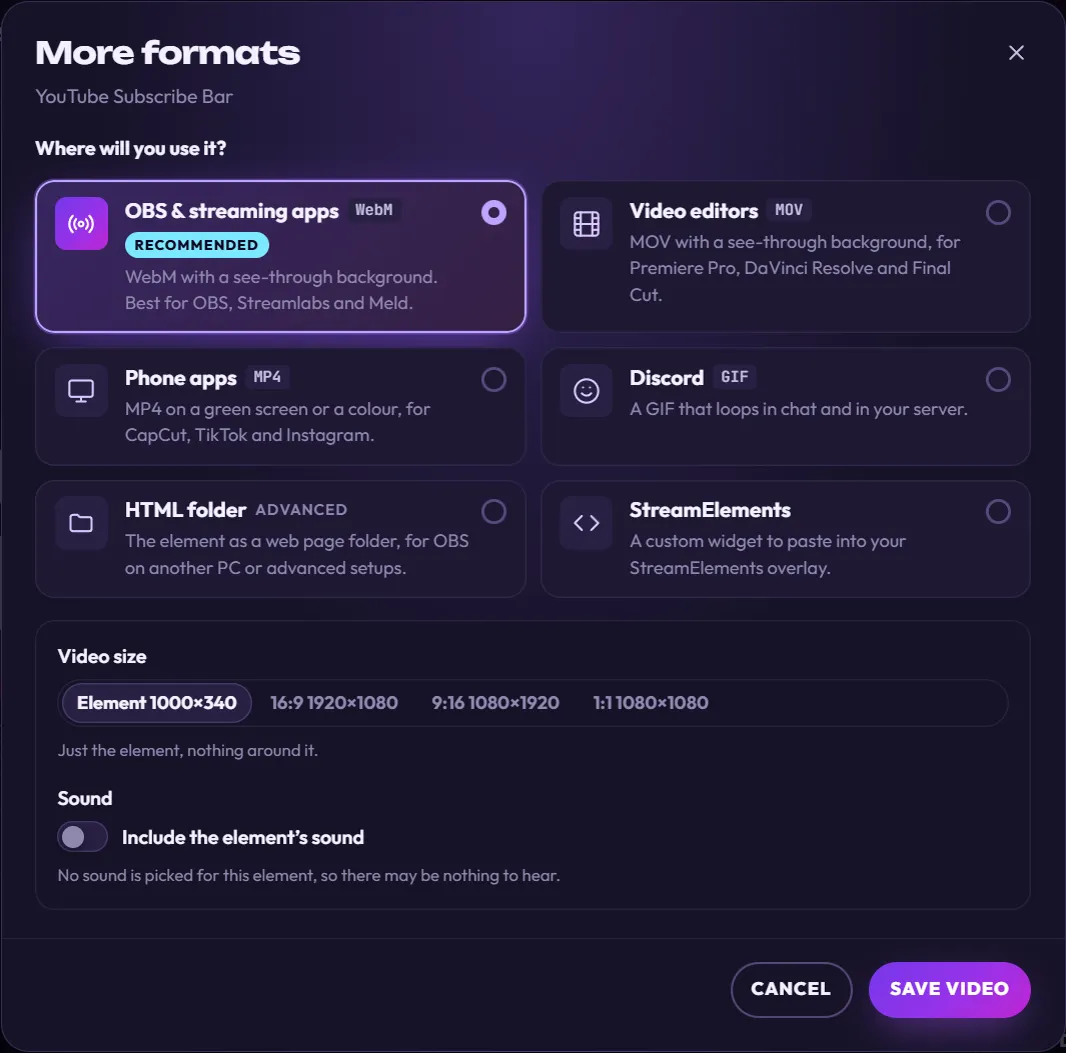
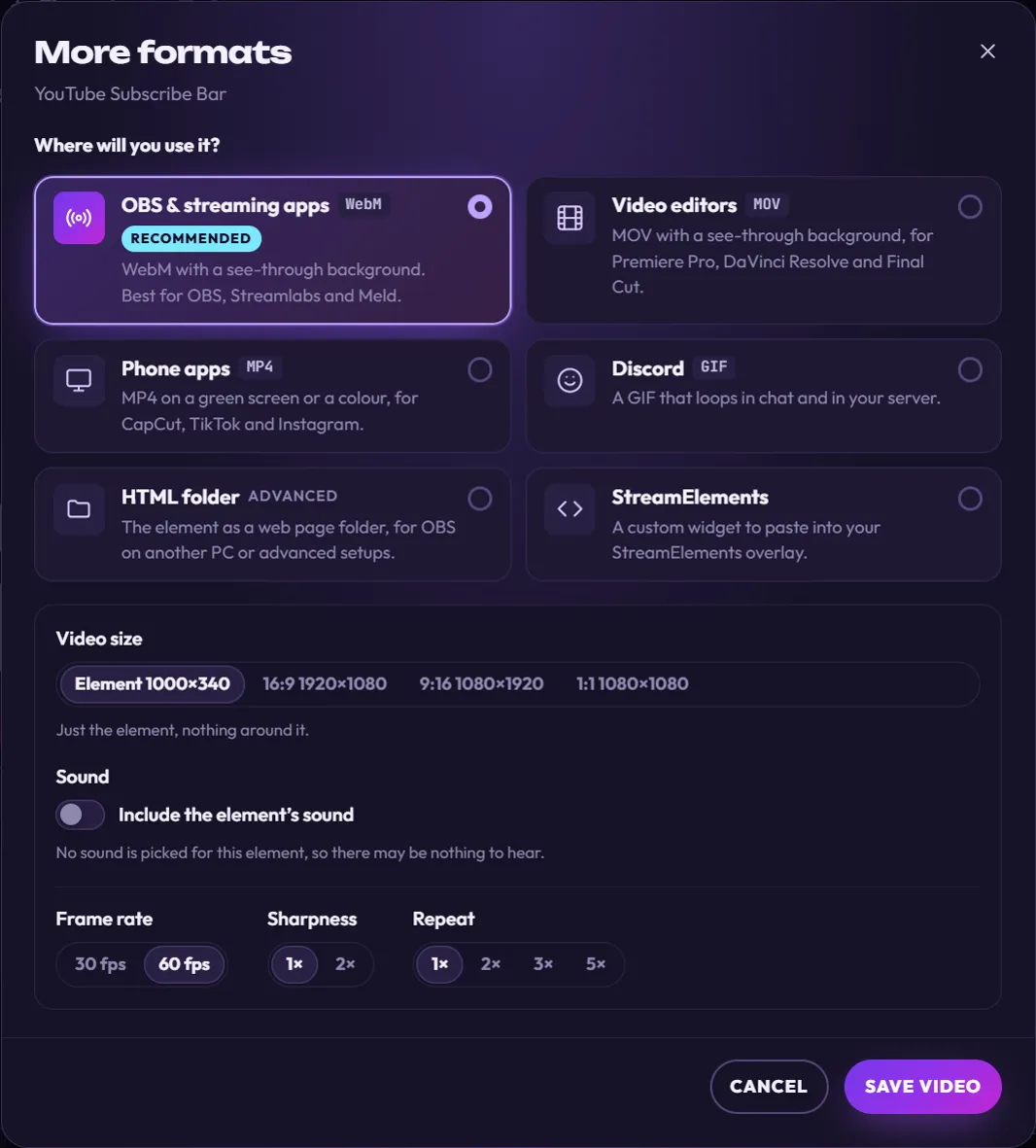
Under Where will you use it?, click the place you’ll use the video. OBS & streaming apps is picked when the window opens.
-
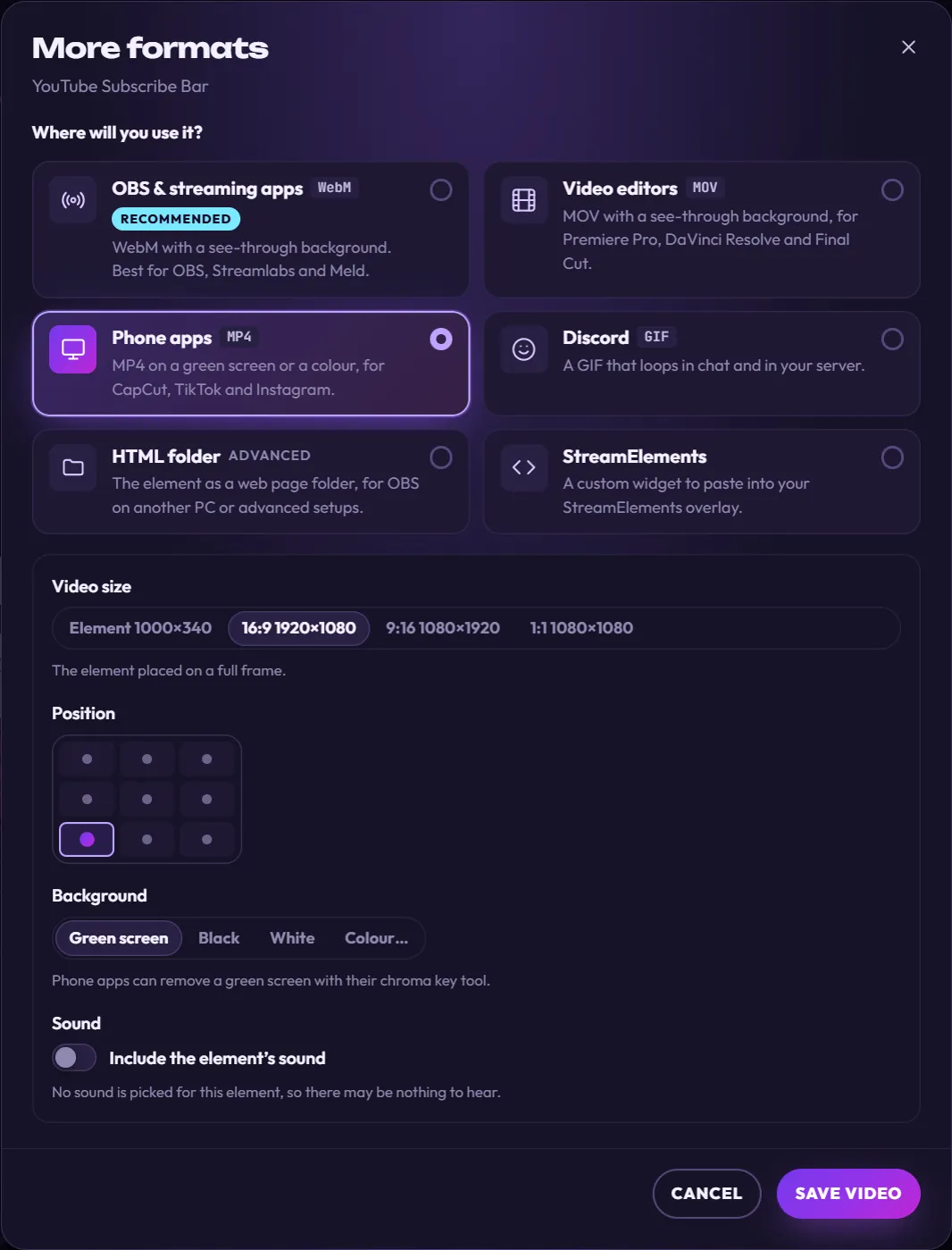
Check the settings under the choices: Video size, Position, Background, Sound and, for some elements, Length.
-
Click Save video. A save window asks where to put the file. Click Save.
-
Follow the progress card in the bottom-right corner, just like a normal download. See Download a video.
The window starts fresh every time you open it: the element’s own size, centered, green screen, and sound on only if the element has a sound picked. Check your settings each time.
Where will you use it?
Section titled “Where will you use it?”| Where will you use it? | Format | See-through background | Sound | Best for |
|---|---|---|---|---|
| OBS & streaming apps Recommended | WebM | Yes | Yes, if one is picked | OBS, Streamlabs, Meld and TikTok LIVE Studio media sources. Small files. Same as Download. |
| Video editors | MOV (ProRes 4444) | Yes | Yes, if one is picked | Premiere Pro, DaVinci Resolve, Final Cut and other desktop editors. Top quality, but big files. |
| Phone apps | MP4 | No: it sits on a green screen or a color you pick | Yes, if one is picked | CapCut, TikTok, Instagram and other apps that can remove a green screen. Plays almost anywhere. |
| Discord | GIF | Yes, but with hard edges | No | Chat and your server. Loops forever. |
| HTML folder | A folder with a web page | Yes | Plays live, if one is picked | OBS on another PC, or advanced setups. See HTML folder. |
| StreamElements | Code to paste | Yes | Plays live, if one is picked | A StreamElements overlay. See StreamElements. |
A few things to know about each video format:
- WebM is the format streaming apps like best. Not every phone app or video editor can show its see-through background.
- MOV files are made for editing, so they’re much bigger than the others. That’s normal. Final Cut runs on a Mac, so copy the file over first.
- MP4 can’t be see-through, so the element sits on a solid color. Phone editors remove the green with their chroma key tool (it makes one color see-through).
- GIF is limited to 256 colors and 30 frames per second. Soft glows and shadows get hard edges, because each pixel in a GIF is either fully see-through or fully visible.
The settings
Section titled “The settings”Video size
Section titled “Video size”| Option | What you get |
|---|---|
| Element (for example Element 1000×340) | Just the element, nothing around it. Smallest file. |
| 16:9 1920×1080 | The element on a full widescreen frame, like a YouTube video or a 1080p stream. |
| 9:16 1080×1920 | The element on a tall frame for TikTok, YouTube Shorts and Instagram Reels. |
| 1:1 1080×1080 | The element on a square frame, for square posts. |
On a full frame, the element keeps its real size. It is never stretched to fill the frame. It only gets smaller when it doesn’t fit: a 1920-wide intro on a 9:16 frame shrinks to 1080 wide. Everything around the element is see-through, except in MP4, where it’s your background color.
Position
Section titled “Position”With a full frame, a Position grid appears. Click one of the nine spots to place the element, for example bottom left. The element sits 48 px from the edges it lines up with (a bit less if it’s almost as big as the frame). The middle spot is picked to start with.
Background (Phone apps only)
Section titled “Background (Phone apps only)”MP4 can’t be see-through, so you choose what goes behind the element:
- Green screen (picked to start with): pure green, easy for phone apps to remove. The window reminds you: “Phone apps can remove a green screen with their chroma key tool.”
- Black or White: for when you want a plain background, or when the element itself has green in it.
- Colour…: shows a color picker so you can choose any color.
Length (elements that stay on screen)
Section titled “Length (elements that stay on screen)”Some elements stay on screen instead of playing and leaving, like the Socials Bar. For those, Length (seconds) sets how long the video runs: from 2 to 600 seconds, 10 to start with. The element leaves at the end of the video.
All other elements play once, and the video ends when the animation does.
The Sound switch, Include the element’s sound, is there for WebM, MOV and MP4:
- It starts on when the element has a sound picked (under Advanced, in the Effects group). Turn it off to save this video without sound. Your element keeps its sound.
- It starts off when no sound is picked, with the note “No sound is picked for this element, so there may be nothing to hear.” Pick a sound in the editor first if you want one. See Advanced settings.
- Discord (GIF) shows “GIFs have no sound.” instead, because GIF files can’t carry sound.
If you see “This format can’t include sound on this computer.”, the part of the app that adds sound to that format is missing. The video still saves, just without sound. Installing the app again should fix it.
The sound is heard only where the element plays it, for example when the cursor clicks. If nothing played while recording, the progress card says “No sound played, so it’s silent”.
Frame rate, Sharpness and Repeat (Advanced)
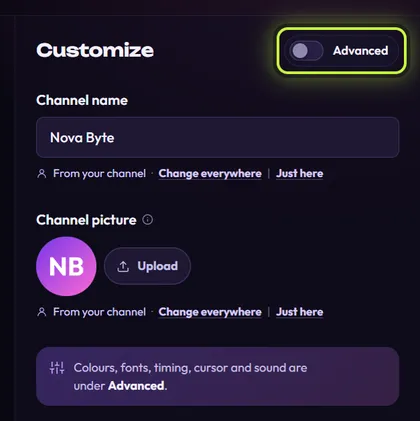
Section titled “Frame rate, Sharpness and Repeat (Advanced)”Turn on the Advanced switch at the top right of the editor’s Customize panel, then open More formats. Three more settings appear for videos:
| Setting | Options | What it does |
|---|---|---|
| Frame rate | 30 fps · 60 fps (picked to start with) | 30 fps makes a smaller file. GIFs always use 30 fps at most. |
| Sharpness | 1× (picked to start with) · 2× | 2× draws the element at double detail. With Element size, the video is twice as wide and tall (1000×340 becomes 2000×680). On a full frame, the element shows up to twice as big, but never bigger than the frame. |
| Repeat | 1× (picked to start with) · 2× · 3× · 5× | Plays the animation that many times in a row in one video. It doesn’t change elements that stay on screen: use Length for those. |
HTML folder
Section titled “HTML folder”HTML folder saves the element itself as a small web page in a folder, instead of a video. Streaming apps show it as a Browser source (a source that displays a web page). Use it for OBS on another computer (a two-PC setup) or other advanced setups.
In the list, HTML folder always carries an Advanced tag, because it’s meant for setups like these. You don’t need to turn on the editor’s Advanced switch to use it.
-
In More formats, click HTML folder, then Save folder.
-
Choose where to put it (a USB stick works well for a second PC). The app makes a new folder inside it, named like the video files, for example
YouTube Subscribe Bar - Nova Byte. -
A message says “Folder saved.” Click Show in folder to see the new folder, selected, in File ExplorerFinderyour file manager. Inside is
index.html, the page to add, andREADME.txt, with the steps and the size to use. -
Using a second PC? Copy the whole folder onto it, somewhere it can stay.
-
In OBS, add a Browser source, tick Local file and pick
index.htmlin the folder. Set Width and Height to the size written inREADME.txt(for the YouTube Subscribe Bar: 1000 and 340), then click OK.
Keep the folder where it is: the source reads its files from there.
For a full walk-through, see Add to OBS by hand.
StreamElements
Section titled “StreamElements”StreamElements gives you code to paste into a custom widget in your StreamElements overlay.
-
In More formats, click StreamElements, then Show the code.
-
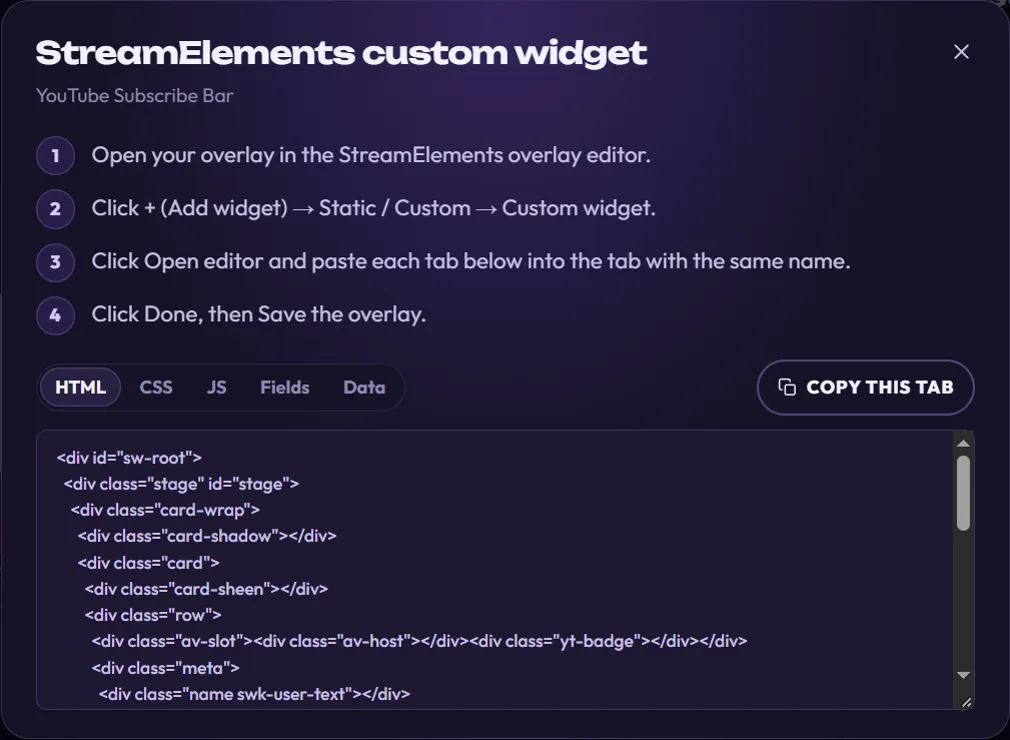
A new window, StreamElements custom widget, shows four steps and the code in five tabs: HTML, CSS, JS, Fields and Data.
-
Follow the four steps in that window. For each tab, click Copy this tab and paste it into the tab with the same name in StreamElements.
Your pictures and fonts are already inside the code, so there’s nothing else to upload. The element plays when the overlay loads, not when someone follows or subscribes, and StreamElements’ Emulate won’t make it play. The full guide is in StreamElements, and How elements play explains more.
When video formats are greyed out
Section titled “When video formats are greyed out”If the four video choices are greyed out and the window says “Video export needs a part of the app that’s missing. Reinstall Stream UI Fun Studio to fix it. The HTML folder and Add to my stream still work.”, install the app again from the website. See Download and install. If just one choice is greyed out, hover over it: “Not available on this computer” means that one format can’t be made on this PC, so pick another.
Live widgets (chat, goals) have Get the files instead of More formats. It opens the same window with only HTML folder and StreamElements, because live widgets can’t be videos.