Import and unlock your purchase
Every pack you buy comes as one download from Gumroad: a .zip named after the product, like graveyard-chat.zip. Inside is the pack’s unlock file, the one the app needs. Give the whole .zip to the app once, and its elements appear in your Elements tab. You never need to unzip it.
Most of them work just like the free ones: customize them, then add them to your stream. Chat and goal widgets and ready-made files like stickers and stinger transitions work a little differently: see Use elements from packs.
Every way to unlock
Section titled “Every way to unlock”All of these do the same thing. Pick whichever is easiest for you.
Drag and drop (easiest)
Section titled “Drag and drop (easiest)”-
Open File ExplorerFinderyour file manager and find the .zip. Downloads usually land in your Downloads folder.
-
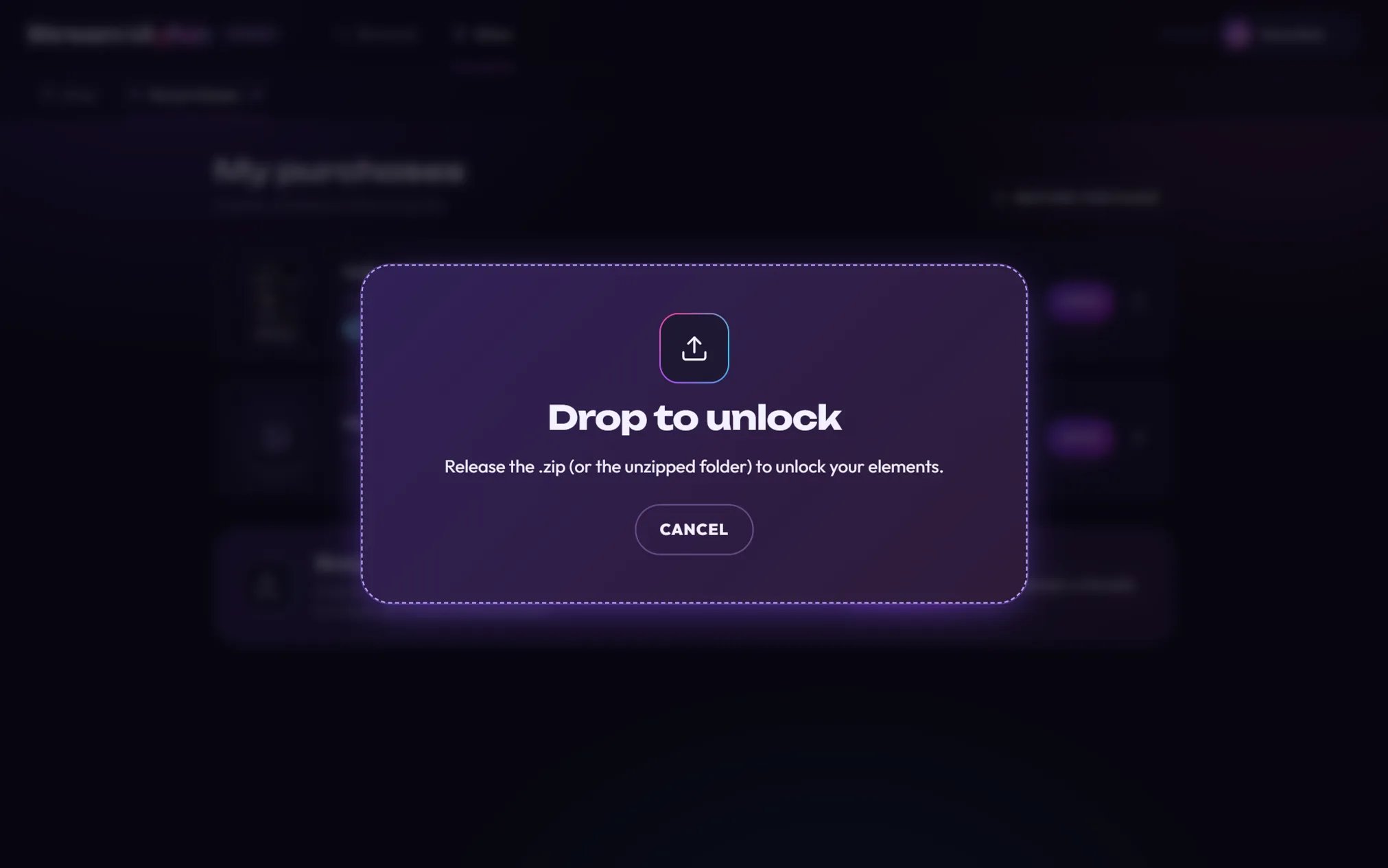
Drag the .zip onto the app window. It works on any tab, at any time, even over the Shop page. The app shows Drop to unlock.
-
Let go of the file. You see Unlocking… with the file’s name for a moment, then the result (see What the result means).
You can drag several files at once. Changed your mind? Drag the file back out of the window, or click Cancel.
Browse…
Section titled “Browse…”Browse… opens your computer’s normal file picker. Pick the .zip and click Open. To pick several, hold CtrlCmd while you click them.
You’ll find Browse… in three places:
- on the Thanks for your purchase! screen, after you buy in the app,
- in the Bought something? box at the bottom of Store → My purchases,
- on the result screen, when something didn’t unlock.

Choose a folder
Section titled “Choose a folder”Choose a folder sits right next to Browse…. Use it when:
- the .zip was already unzipped (for example, you clicked Extract Alldouble-clicked itclicked Extract Here by accident). Pick the unzipped folder.
- you keep your unlock files (the files whose names end in “- for Stream UI Fun Studio.zip”) together in one folder. Pick that folder and the app unlocks every pack in it. It doesn’t look inside the .zips you downloaded from Gumroad, so for those, pick them all with Browse… or drag them in instead.
Found in Downloads: Unlock it
Section titled “Found in Downloads: Unlock it”When you buy in the app, the app watches your Downloads folder for the file. As soon as it’s there, the app says Found … in Downloads. Click Unlock it (1). This shows on the Thanks for your purchase! screen, in the banner at the top of the Store, or in a pop-up message.

Sets and bundles
Section titled “Sets and bundles”If you bought a set, each product in it has its own .zip in your Gumroad library. Download each one, then drop them on the app together: you can drag several .zip files at once, or pick several with Browse…. Gumroad’s Download all puts them all inside one bigger .zip, and the app can’t unlock that one: drop the product .zips instead.
The app takes up to 20 packs from one folder. If it holds more, the app tells you to drop them in smaller groups.
Restore purchases
Section titled “Restore purchases”On a new PC, or to bring back packs you removed, Restore purchases in Store → My purchases finds unlock files in your Downloads folder for you. See Restore purchases on a new PC.
Drop it on the app’s shortcut
Section titled “Drop it on the app’s shortcut”If you have a Stream UI Fun Studio shortcut on your desktop, you can also drag the .zip onto it.You can also drag the .zip onto the Stream UI Fun Studio icon in your Dock or in Applications. The app opens (or comes to the front if it’s already open), unlocks the file and shows the same result screen.
What the result means
Section titled “What the result means”After Unlocking…, you see one of these.
You’re all set!
Section titled “You’re all set!”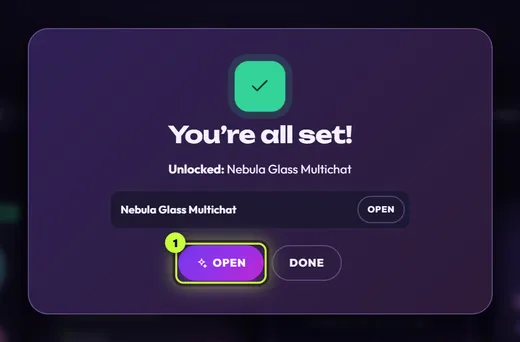
It worked. Unlocked: lists what you got, with one row per pack. Click Open (1) (or Open all when you unlocked several packs) to jump to the Elements tab. Click Done to stay where you are.
A row can carry a small tag:
| Tag | What it means |
|---|---|
| updated to v2 (or another number) | You dropped a newer version of a pack you already had. It replaced the old one. |
| repaired | You dropped the same version you already had. The app put in a fresh copy, which can fix a pack that stopped working properly. |
Open shows only the elements from that pack, with a New flag. The × on the From … chip (1) brings back all your elements.
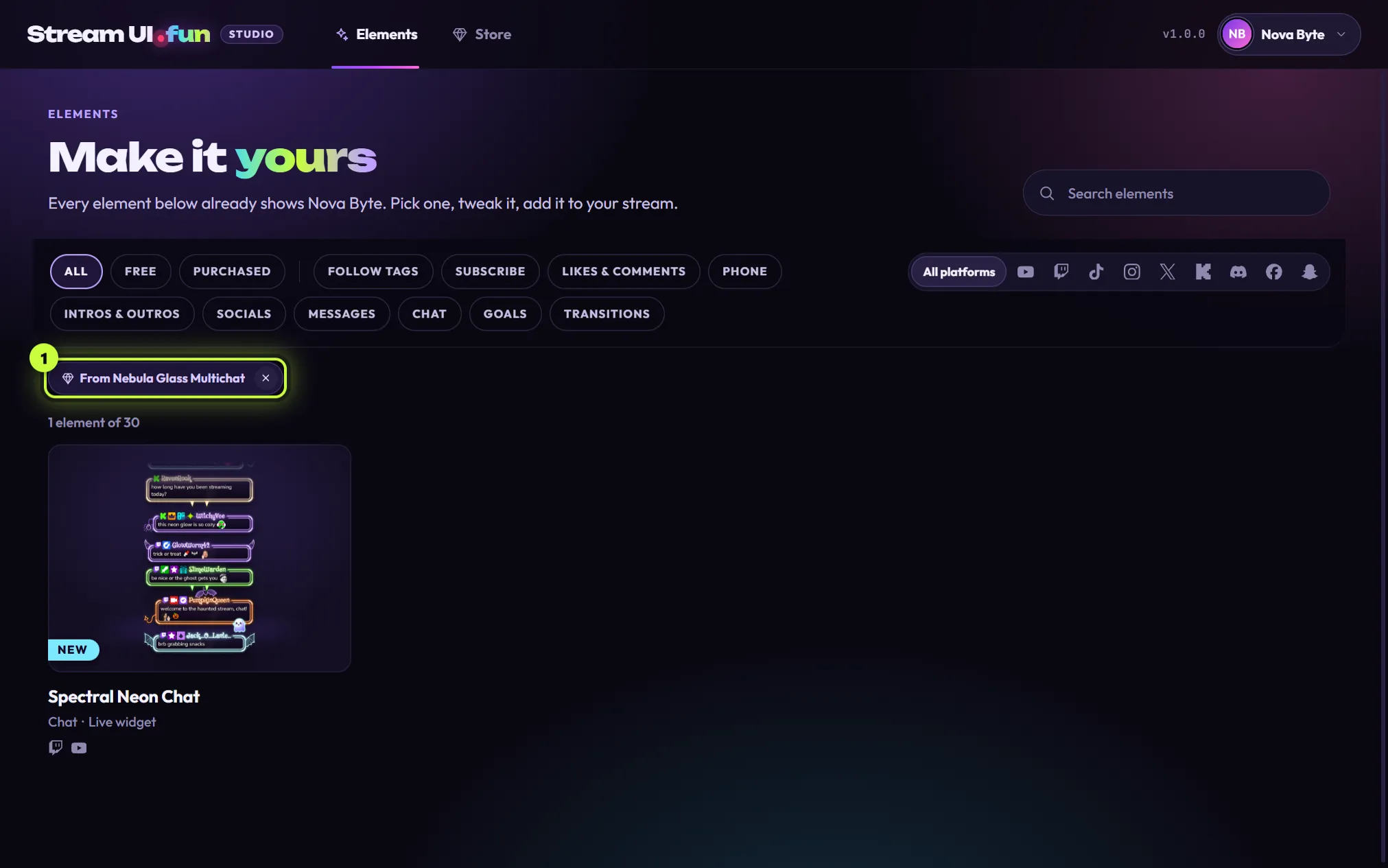
Not sure what to do with what you got? Stickers and other ready-made files, live widgets and animations each work a little differently. See Use elements from packs.
Almost there!
Section titled “Almost there!”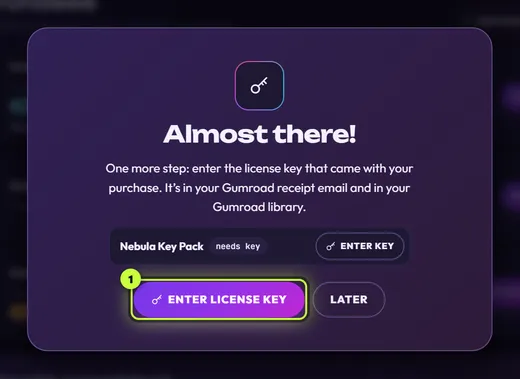
The pack is on your computer, but it also needs the license key from your purchase. Click Enter license key (1) and paste it. Later keeps the pack locked in My purchases until you do. See License keys.
It partly worked
Section titled “It partly worked”If you dropped several files and only some unlocked, you get You’re all set! for the good ones, with a list of the files that didn’t work and why underneath.
That didn’t unlock anything
Section titled “That didn’t unlock anything”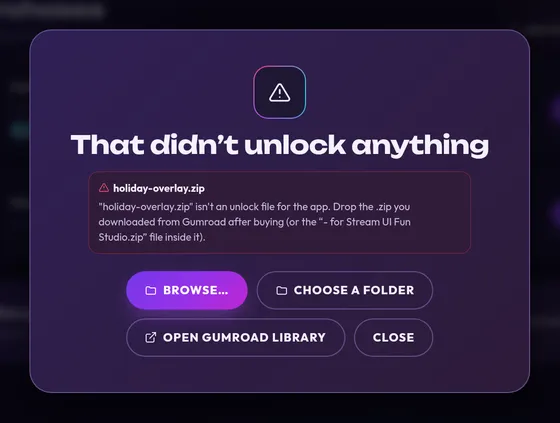
Each file that didn’t work is listed with the reason (see the table below). From here you can try another file with Browse… or Choose a folder, or grab the right file with Open Gumroad library. Close closes the screen. If you were in the middle of a purchase, the button says Back and returns you to Thanks for your purchase!
If it didn’t unlock
Section titled “If it didn’t unlock”The message always names your file (here shown as “file.zip”) or your pack.
| The message says | What to do |
|---|---|
| “file.zip” isn’t an unlock file for the app. | You dropped a different file, often one of the files for OBS or another app from inside your download. Drop the .zip you downloaded from Gumroad. If you unzipped it, drop the file inside it whose name ends in “- for Stream UI Fun Studio.zip”. |
| “file.zip” is damaged or didn’t finish downloading. | Download it again from your Gumroad library and drop the new file. You also get this when you drop something that isn’t a .zip at all, like a picture. |
| “file.zip” is too big to open directly. Unzip it first (right-click it, then Extract All) (double-click it), then drop the folder here. | Do just that: right-click the .zip, choose Extract Alldouble-click the .zipright-click the .zip, choose Extract Here, then drop the new folder (or use Choose a folder). |
| “file.zip” holds too many packs at once. Drop them in smaller groups. | Unzip the big download and drop its files in a few smaller batches. |
| “file.zip” is larger than a pack can be. | Often it’s a big file that isn’t for the app. If your pack unlocked anyway, you can ignore this line. If not, download the purchase’s .zip again from your Gumroad library and drop that. |
| … needs a newer Stream UI Fun Studio. Update the app, then drop it again. | Update the app, then drop the same file again. |
| … wasn’t signed by Stream UI, or it needs a newer Stream UI Fun Studio. | Update the app and try again. If that doesn’t help, email us. Official packs only come from streamui.fun and our Gumroad store. |
| You already have a newer version of … so nothing changed. | Nothing to do: you already have something newer. |
| … doesn’t come from Stream UI, or it was changed after it was downloaded. / Part of … is damaged. / … has extra files in it that don’t belong. / Something inside … is broken. | The file changed after you downloaded it. Download a fresh copy from your Gumroad library and drop it without opening or editing it. |
| … has files in it that the app won’t open, to keep your computer safe. | Download a fresh copy from your Gumroad library and drop that. |
| … clashes with an element you already have. | Update the app and try again. If it still happens, email us. |
| Couldn’t save … on this computer. | Free up some disk space, close programs that might be using the file, and try again. |
Still stuck? Email hello@streamui.fun with the message you see. More messages are explained in Error messages.