Set up play events
A play event is a moment you choose for an element to play: its scene going live, a repeat timer, or you showing it with a key. In the app these are the two play options in the Add to OBS dialog. This page shows how to pick them, which ones suit which element, and how to change them later.
The two play options
Section titled “The two play options”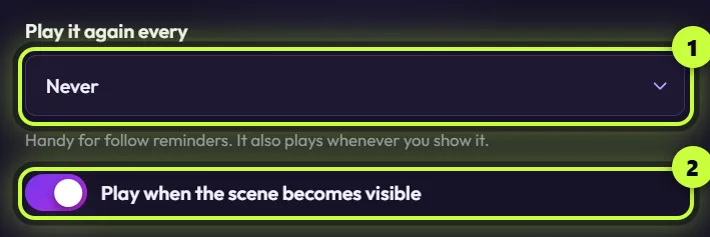
| Option | Choices | Starts at | What it does |
|---|---|---|---|
| Play it again every | Never, 5 minutes, 10 minutes, 15 minutes, 30 minutes, 60 minutes | Never | Plays the element again on a timer. The first repeat comes that many minutes after the source loads, then it repeats at that interval. |
| Play when the scene becomes visible | On or off | On | Plays the element each time it shows up in what OBS sends to your viewers: when you switch to its scene, or show the source with the eye icon, a hotkey or a Stream Deck button. |
Whatever you pick, the element also plays once when its source loads (for example when OBS starts), and when you click Play now.
Choose them when you add an element
Section titled “Choose them when you add an element”-
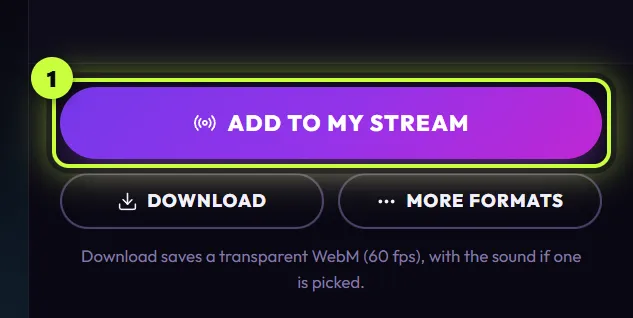
In the Elements tab, click the element’s card. The editor opens. Click Add to my stream (1).
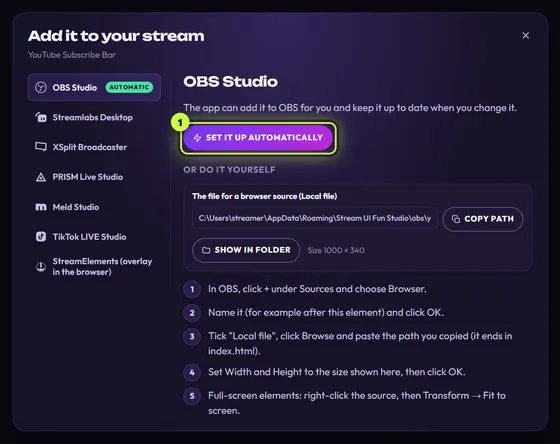
If a window called Add it to your stream opens instead, What do you stream with? in Your channel isn’t set to OBS Studio. Click OBS Studio in the list on the left, then Set it up automatically (1). To skip this window next time, see Tell the app what you stream with.
-
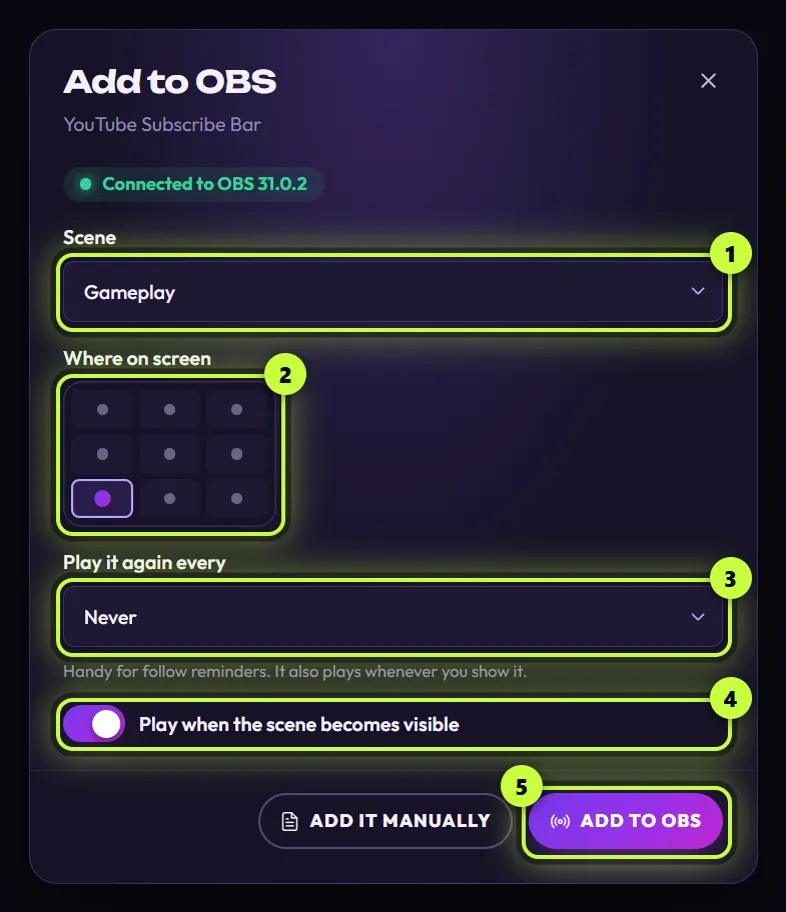
In Add to OBS, pick the Scene (1) and a spot under Where on screen (2). Full-screen elements, like YouTube Channel Intro, say “This one fills the whole screen.” instead of showing the grid.
-
Under Play it again every (3), pick a time, or leave it on Never.
-
Leave Play when the scene becomes visible (4) on, unless you only want the timer (see the table below).
-
Click Add to OBS (5).
-
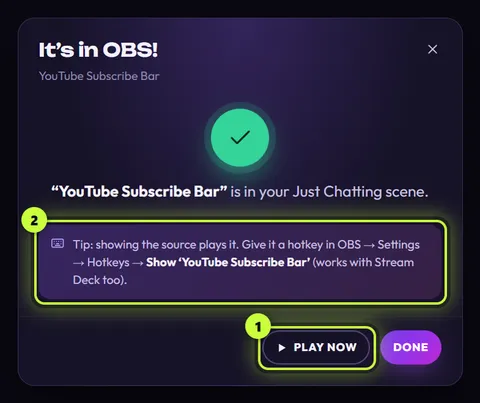
When It’s in OBS! appears, check that OBS is showing the scene you picked. If it isn’t, click that scene in OBS’s Scenes list. Then click Play now (1) and watch OBS. When you’re happy, click Done. Play now is only in this window.
Which options to pick
Section titled “Which options to pick”| You want… | Play it again every | Play when the scene becomes visible |
|---|---|---|
| A follow or subscribe reminder now and then | 10 minutes or 15 minutes | On |
| To play it on cue with a hotkey or Stream Deck | Never | On (showing the source is what plays it) |
| An intro each time you switch to your starting scene | Never | On |
| A reminder on the timer only, not on every scene switch | Any time you like | Off |
| An element that stays on screen, like the Socials Bar | Never | Either way: it slides in once and stays |
Change them later
Section titled “Change them later”The app doesn’t have a separate settings screen for play options. You change them by sending the element to OBS again.
-
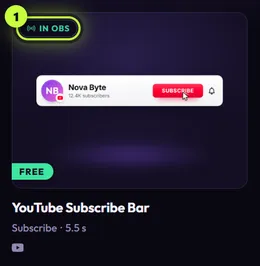
In the Elements tab, click the card with the green In OBS badge (1). The editor opens.
-
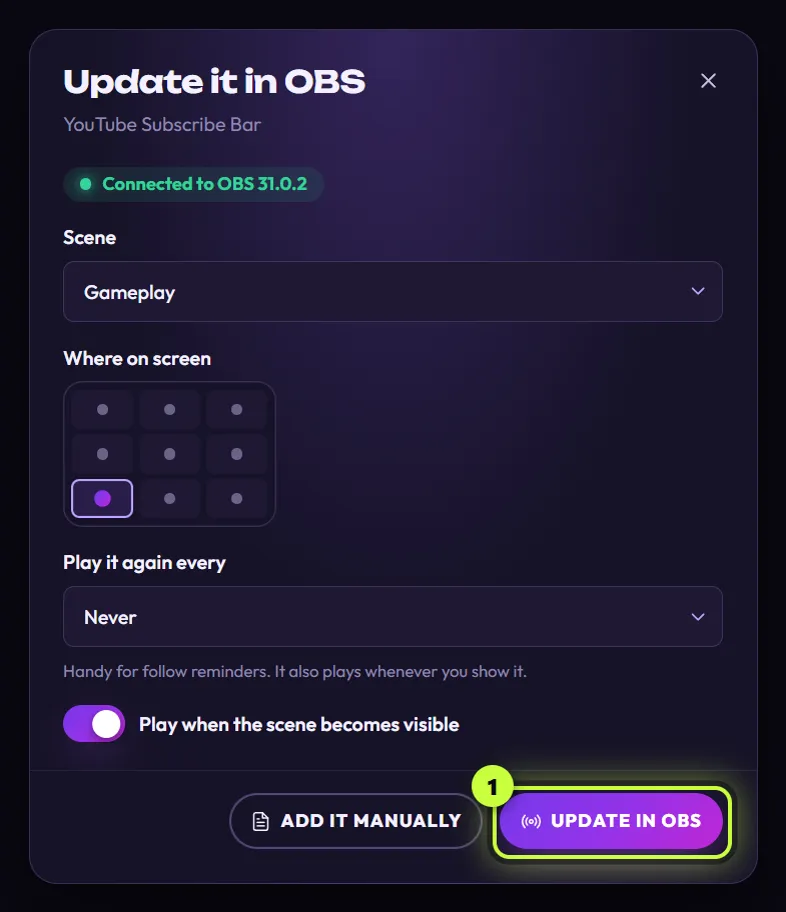
Click Add to my stream. The dialog is now called Update it in OBS.
-
Set every option again. The dialog doesn’t remember what you picked last time: it starts at Never, with the switch on, Bottom left, and the scene that’s live in OBS right now (your Preview scene in Studio Mode). Pick the scene the element is already in.
-
Click Update in OBS (1).
More about updating, including what happens when you change an element: Change an element that’s already in OBS.
Good to know
Section titled “Good to know”- Your choices stay with the element. Changing its text or colors in the app keeps them, and so does Reset all changes. See Make copies and reset changes.
- One element, two behaviors? An element added to two scenes is still one source with one set of options. To have it on a timer in one scene and on a hotkey in another, click Make a copy in the editor and add the copy to OBS as its own source.
- Live widgets from packs (like chat boxes and goals) have no play options. They’re always on, so the dialog only asks for the scene and the spot.