Troubleshooting
Something not working? Find what you’re seeing below and try the fixes in order. Most take less than a minute.
New to words like scene, source or Studio Mode? The Glossary explains them in plain language.
Got an exact message on screen? Error messages explained lists the messages you’re most likely to see, with what each one means.
In OBS and other streaming apps
Section titled “In OBS and other streaming apps”The element doesn’t show up in OBS
Section titled “The element doesn’t show up in OBS”- It may have already played. Most elements play once and then leave the screen, so an empty spot between plays is normal. To see it again, hide and show the source with the eye icon in OBS’s Sources list (or press its hotkey) while its scene is live. That works while Play when the scene becomes visible is on, which it is by default. Play now is only in the It’s in OBS! window, right after you add or update an element. Elements marked “Stays on screen” (like the Socials Bar) are the exception: they stay put once they’re in.
- Look in the right scene. The app adds the element to the scene picked under Scene in the Add to OBS window, which is your live scene unless you chose another. With OBS’s Studio Mode on, it goes into your Preview scene first.
- Check the source is visible. In OBS’s Sources list, the eye icon next to the element must be on.
- Check it isn’t hidden behind something. OBS draws sources at the top of the Sources list in front of the ones below. Drag the element above your camera or game capture. It sits near the edge you picked under Where on screen.
- Added it by hand? Open the source’s properties in OBS and check that Local file is ticked, the path ends in
index.html, and Width and Height match the Size in the app’s Add it to OBS yourself window (open it with Add to my stream → Add it manually). See Add to OBS by hand. - OBS runs on another computer? The app can only add elements to OBS on the same computer. For a two-PC setup, save an HTML folder and copy it over (see Add to OBS by hand).
It doesn’t play (or doesn’t play when someone follows)
Section titled “It doesn’t play (or doesn’t play when someone follows)”The free elements are on-cue animations, not alerts. They don’t play by themselves when someone follows, subscribes or tips, and StreamElements’ Emulate test buttons don’t start them either. An element plays when:
- its source loads (OBS starts, or the source is added or refreshed);
- its scene goes live, if Play when the scene becomes visible is on (it is by default);
- the Play it again every timer comes round (5 to 60 minutes; it’s Never unless you pick a time);
- you click Play now in the It’s in OBS! window, right after adding it;
- you show the source (eye icon, an OBS hotkey or a Stream Deck button) while its scene is live, if Play when the scene becomes visible is on.
So to play a follow reminder on cue, give the source a hotkey. In OBS, open Settings → Hotkeys and set a key for Show ‘element name’. See Hotkeys and Stream Deck.
Want a pop-up every time someone follows? Keep your alert service (like StreamElements or Streamlabs) for that, and use your elements as on-cue extras: a hotkey, a Stream Deck button or the repeat timer. See Follows, subs and tips.
Still not playing?
- Studio Mode on? Showing the element in OBS’s Preview doesn’t play it. It plays when you click Transition and its scene goes live.
- Turned off Play when the scene becomes visible? Then switching to its scene or showing the source (eye icon, hotkey, Stream Deck) doesn’t play it either. Click Add to my stream, turn the switch back on and click Update in OBS.
- Clicked Update in OBS? That window starts at Never every time, so pick your Play it again every time again before you click it.
- Added by hand, or in another streaming app? Play when the scene becomes visible and Play it again every are set in the app’s Add to OBS window. Without them, the element plays only when its source loads. To make showing it play it again, double-click the source in OBS and tick Shutdown source when not visible (for the eye icon, hotkeys and Stream Deck) or Refresh browser when scene becomes active (for scene switches). See How elements play.
- A “Stays on screen” element? Once it’s in, hiding and showing it doesn’t replay the intro. Refresh the source to start it over.
- Pressed play twice? If an element is already playing, another cue is ignored until it finishes.
- Waiting for the timer? Play it again every counts from when the source loaded, so the first repeat comes that many minutes later.
More: How elements play and Test your elements.
I can’t hear the sound
Section titled “I can’t hear the sound”-
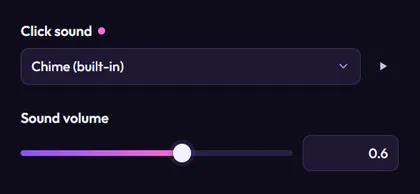
No sound picked? The free elements start silent. In the editor, turn on Advanced, open Effects and pick a sound in the sound field (it’s called Click sound, Pop sound, Tap sound or similar). Click ▶ next to it to hear it.
-
Muted preview? The editor preview starts muted every time. Click the speaker button at the bottom right of the preview, next to Replay.
-
In OBS? The sound plays through the element’s source, so it gets its own slider in OBS’s Audio Mixer. Make sure it isn’t muted or turned right down. (Added it by hand? Tick Control audio via OBS in the source’s properties to get the slider.)
See Advanced settings.
My changes don’t show in OBS
Section titled “My changes don’t show in OBS”- The editor says Click Refresh in OBS (or a card says Refresh in OBS): your change is saved, but OBS wasn’t reachable. Open OBS and the app refreshes the element as soon as it reconnects, or click Refresh in the editor.
- Added it by hand? The app keeps the file up to date, but OBS doesn’t reload it on its own. In OBS, open the source’s properties and click Refresh cache of current page.
- Using a downloaded video, an HTML folder or StreamElements code? Those are copies of the element at the time you saved them. Save or paste them again after a change.

My element jumped back to its old spot
Section titled “My element jumped back to its old spot”The Update it in OBS window doesn’t remember your last choices. It always starts with the bottom-left spot under Where on screen (top left for live widgets), Play it again every at Never and the switch on. Update in OBS then moves the element to that spot, even if you moved it in OBS. So before you click it, pick your spot and repeat time again, or move the element back in OBS afterwards. Picking a different Scene adds the element to that scene as well; it stays in the old one too. See Change an element that’s already in OBS.
My chat box or goal shows made-up messages, or nothing
Section titled “My chat box or goal shows made-up messages, or nothing”In the app, live widgets from packs always show demo data (look for the Demo data chip on the preview). As the app says, on your stream they show your real chat and goals.
Made-up messages in OBS too? The widget’s Demo mode switch (under Advanced) is on. Turn it off.
Chat box empty in OBS, or the goal doesn’t move?
- Check the widget’s Twitch channel box. It needs your Twitch channel name, which fills in from the Twitch handle in Your channel.
- In OBS (or another app’s browser source), live widgets only read Twitch chat: chat messages, subs, cheers and raids. A goal that counts Tips (amount) or Follows doesn’t move there, and chat from YouTube or Kick doesn’t show. Those only reach the widget inside a StreamElements overlay.
- Goal set to Manual only? Nothing moves it by itself. Change Starting progress to set where it is.
OBS won’t connect
Section titled “OBS won’t connect”Work through these in order. The Add to OBS window checks again every few seconds, so watch it change as you go.
-
Use OBS Studio 28 or newer, on the same computer as the app. The window says Update OBS Studio if yours is older.
-
Open OBS. The window says Open OBS Studio until it’s running.
-
Turn on OBS’s connection: in OBS, open Tools → WebSocket Server Settings, tick Enable WebSocket server and click Apply. Back in the app, click I’ve done it. You only do this once.
-
Still says Turn on OBS’s connection although Enable WebSocket server is ticked? OBS may be using another port. In the same OBS window, set Server Port to
4455, click Apply, then click I’ve done it. -
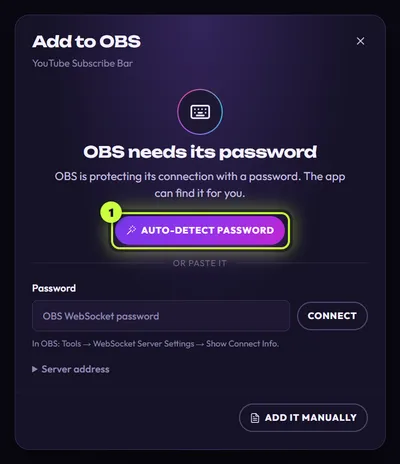
If the window says OBS needs its password, click Auto-detect password (1). Or in OBS’s WebSocket Server Settings window, click Show Connect Info, copy the password, paste it in the app and click Connect.
-
If it says Can’t reach OBS, OBS may be busy, or the app couldn’t tell whether it’s running. Click Auto-detect password first: it also finds the right port (the number at the end of the address). Still stuck? Restart OBS. Then in OBS’s WebSocket Server Settings, check the server is ticked on and note the Server Port. It must match the end of the Server address in the app (normally
ws://127.0.0.1:4455). -
Still stuck? Click Add it manually and follow the steps. Your element looks the same, but it only plays when its source loads (no scene-visible play, repeat timer or Play now), and after a change you refresh it in OBS yourself.
Full guide: Connect the app to OBS. Each message is explained under OBS connection.
Your channel
Section titled “Your channel”My follower count is wrong
Section titled “My follower count is wrong”- It’s a little off. YouTube and TikTok round larger counts, Snapchat rounds all of them, and Instagram and Facebook show short forms, so these are close but not exact. The row shows an About tag when that happens. Most elements also show counts short, like
12.4Kfor 12,483 and4.72Kfor 4,728. Counts under 1,000 show in full. (The Instagram Phone Profile shows exact counts under 10,000 in full, like4,728.) - It’s old. Counts only update when you click Fetch counts, or once a day if you turn on Auto-fetch once a day (it’s off at first). Auto-fetch runs the first time you open the app each day.
- You typed it in. Fetch counts never replaces a count you typed. Click Fetch instead on that row to get the real one.
- It’s someone else’s count. Check the handle. When the app finds an account under a different name, the row says Found followed by that account’s @handle. After changing a handle, the row says New handle: press Fetch counts.
- The element shows a sample number. In the editor (with Advanced on, under Text), the count field says Sample number with a Use my real count link when you have no count for that platform yet. An element uses the count of its own platform (a YouTube element shows YouTube subscribers). Elements made for any platform use your main platform.
- You changed it on one element only. The field says Only on this element. Click Use my channel to go back to your channel’s count.
- It can’t be read. Twitch and Kick don’t share subscriber counts publicly, so only followers are listed for them. Hidden counts and blocked lookups can’t be fetched either. Type the number into the row instead.
More: Show your real follower counts and How your channel fills in elements.
My picture can’t be found
Section titled “My picture can’t be found”- No “Get it from” button? It’s only there when your main platform (under Where do you stream?) is Twitch, YouTube, TikTok, X or Kick. For Instagram or Facebook, click Upload picture.
- The button is greyed out? Type your handle first.
- “We couldn’t find a picture for that name”? Check the spelling. Type just your handle, without @ and without a link.
- “Too many picture lookups today”? TikTok and X pictures come through a free lookup service with a daily limit. Upload a picture instead, or try again tomorrow.
- Picked a picture but nothing changed? First click Use this picture under the crop circle, then click Save (or Let’s go the first time).
- One element still shows another picture? You uploaded one on that element only. Click Use my channel under its picture.
More: Add your channel picture.
Elements still say “Your Channel”
Section titled “Elements still say “Your Channel””Your channel isn’t set up yet. Click Set up your channel at the top right, fill in your name and handle, and click Save. Right after, the grid shows Adding your channel to N cards… while the pictures catch up. See Set up your channel.
Downloads
Section titled “Downloads”The download fails
Section titled “The download fails”- Download is greyed out and the note says Video export needs a part of the app that’s missing: reinstall the app (see Download and install). Add to my stream still works meanwhile.
- No Download button at all? That’s a live widget from a pack (like a chat box or a goal), or a ready-made file. A live widget shows your real chat and goals while you stream, so there’s no video to make: use Add to my stream, or Get the files. A ready-made file is already a file: use Show in folder. See Use elements from packs.
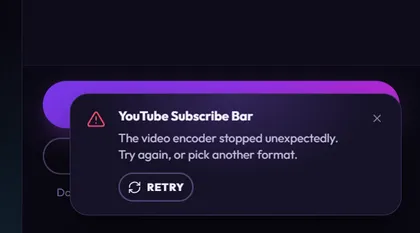
- The progress card shows an error: click Retry. If it fails again, read its message in Error messages explained.
- “Took too long”: close games and other heavy apps, then retry.
- “Couldn’t be saved”: check that the folder still exists, that you have free disk space, and that the file isn’t open in another program. Or save somewhere else.
- Nothing happened? If you clicked Cancel in the save window, nothing is saved. Videos are made one at a time, so a second one waits with Waiting for the export before it….
- It stopped halfway? Closing the app or updating it stops a video that’s still being made. Start it again afterwards.
My video has no sound
Section titled “My video has no sound”A video only has sound if the element has a sound picked (under Advanced → Effects). Download then adds the sound by itself. In More formats, check that Include the element’s sound is on. GIFs never have sound. If More formats says This format can’t include sound on this computer, try another video format (WebM, MOV or MP4). If the finished card says No sound played, so it’s silent, the element played no sound while it was recorded. See Download a video.
I can’t find my video
Section titled “I can’t find my video”Videos are saved to your VideosMovies folder, in Stream UI Fun Studio, unless you chose another place. Right after saving, click Show in folder on the progress card (it stays about 20 seconds).
Missed it? Open File Explorer (Win + E), click Videos in the left panel (under This PC if you don’t see it), then open the Stream UI Fun Studio folder.Open Finder, press Cmd + Shift + G, type ~/Movies/Stream UI Fun Studio and press Return.Open your file manager, click Videos in the left panel, then open the Stream UI Fun Studio folder.
Store and purchases
Section titled “Store and purchases”My purchase won’t unlock
Section titled “My purchase won’t unlock”- Use the right file. Drop the whole .zip you downloaded from Gumroad, as it is. If you unzipped it, drop the file inside it whose name ends in “- for Stream UI Fun Studio.zip”.
- The app didn’t spot your download? While a purchase is waiting, the app watches your Downloads folder. If your browser saved the file somewhere else, drag it onto the app window, or click Browse….
- Bought on the website? The app didn’t see that purchase, so nothing waits for it. Open Store → My purchases and use the Bought something? card, or just drag the .zip onto the window.
- Damaged, or still downloading? Let the download finish, or download it again from your Gumroad library.
- It says “Almost there!” The pack also needs its license key. See License keys.
- It needs a newer app? Update the app, then drop the file again.

More: Import and unlock your purchase and Bought on the website?.
My pack says Locked
Section titled “My pack says Locked”A pack sold with a license key stays locked until its key is checked. The row in Store → My purchases says why.

Most of the time it just needs its key: click Enter key (1) and paste the key from your Gumroad receipt email or library. If the row gives another reason (like a refund, an ended purchase, or a key that couldn’t be confirmed for over 30 days), it also has Check again to ask Gumroad once more. Each reason and what to do is under Locked packs in My purchases.
The Store says Offline
Section titled “The Store says Offline”
The app couldn’t reach streamui.fun in time, so it shows a saved copy of the store. Prices may be out of date, but buying still works: checkout opens in your browser. Check your internet connection, then click Try again. Packs you’ve already unlocked keep working.
The Store tab has a pink dot
Section titled “The Store tab has a pink dot”A purchase is waiting for its .zip. The banner at the top of the Store says what it’s waiting for.

Download the .zip from your Gumroad library and drop it in. Didn’t buy it after all? Click the × at the end of the banner (Stop waiting).
Something I own isn’t marked OWNED in the Shop
Section titled “Something I own isn’t marked OWNED in the Shop”OWNED only shows for packs unlocked on this computer. Unlock its .zip (see above). A pack still waiting for its license key doesn’t count as owned yet.
The app
Section titled “The app”My computer won’t let me install it
Section titled “My computer won’t let me install it”If Windows shows Windows protected your PC, click More info, then Run anyway. The installer isn’t code-signed yet, so Windows may not recognize it. Only do this for the installer you downloaded from streamui.fun/download.
If your Mac says the app can’t be opened because Apple cannot check it, open System Settings → Privacy & Security, scroll down and click Open Anyway. The app isn’t notarized by Apple yet, so Gatekeeper may block it the first time. Only do this for the app you downloaded from streamui.fun/download.
Install the .deb file with your software center, or in a terminal with sudo apt install ./stream-ui-fun-studio_<version>_amd64.deb. It needs a Debian-based Linux like Ubuntu, Debian, Linux Mint or Pop!_OS, and your password, because it installs for the whole computer.
If the download page still says Coming soon, the app isn’t out yet. See Download and install.
The update won’t install
Section titled “The update won’t install”
The round update button (1) only appears when a new version is out. The app checks once each time it starts. If updating fails, a message says why: check your internet connection and free disk space, then click the button again. Or download the newest version from streamui.fun/download and install it over the old one. On WindowsmacOSLinux that’s how every update works: the button opens the download page. See Update the app.

No button, but you know a new version is out? Close the app and open it again: it checks each time it starts.
The app won’t start
Section titled “The app won’t start”- Only one copy of the app runs at a time. Opening it again brings the open window to the front, so check your taskbarDocktaskbar or dock. On a Mac, closing the window keeps the app running in the Dock: click its Dock icon to bring the window back.
- If you see The app couldn’t load your elements, close the app and open it again. If it keeps happening, reinstall it.
- Nothing happens, or a terminal shows “The SUID sandbox helper binary was found, but is not configured correctly”? The app wasn’t installed from its
.deb(for example, someone unpacked it or made an AppImage). Newer Ubuntu versions need the security rule the.debsets up. Install the.debfrom streamui.fun/download and open the app from your apps menu.
Still stuck?
Section titled “Still stuck?”Email hello@streamui.fun. Tell us what you were doing, what you expected and what happened, and add a screenshot of any message. The app also keeps a log file, main.log, in %APPDATA%\Stream UI Fun Studio\logs~/Library/Application Support/Stream UI Fun Studio/logs~/.config/Stream UI Fun Studio/logs (paste that into File Explorer's address barin Finder, press Cmd + Shift + G and paste thatin your file manager, press Ctrl + L and paste that to open the folder). Attaching it can help us find the problem faster. We reply within 24 hours, Monday to Friday.