How elements play
Your elements are on-cue animations. Each one plays when something tells it to, then folds away until the next time. This page explains what can start an element in each streaming app, and what it doesn’t react to.
The short version
Section titled “The short version”- In OBS, when the app added the element for you, it plays when the source loads, on a repeat timer if you set one, and when you click Play now. While Play when the scene becomes visible is on (it is by default), it also plays each time its scene goes live and when you show it with a hotkey or a Stream Deck button.
- Everywhere else, it plays when the source loads. Refresh the source to play it again (in OBS: double-click the source, then click Refresh cache of current page; other apps have a similar reload option).
- Elements don’t know when someone follows or subscribes. They won’t play by themselves for a new follower, sub or tip. Here’s what to do instead.
A source is one item in an OBS scene, like your camera, a picture or a web page. Your elements go in as a browser source: a small web page inside OBS. New to these words? See the Glossary.
What starts an element
Section titled “What starts an element”“OBS, added by the app” means you used Add to my stream and then Add to OBS. “By hand” means you added the file yourself with Add it manually or a guide for another app.
| What starts it | OBS, added by the app | OBS by hand, or another app’s browser source | StreamElements overlay | A downloaded video |
|---|---|---|---|---|
| The source loads (OBS starts, the source is added or refreshed) | Yes | Yes | Yes, each time the overlay loads | Plays when your app starts the video |
| Its scene goes live | Yes, while Play when the scene becomes visible is on (it is by default) | Not by itself (tip) | Not by itself (tip) | Depends on your app (tip) |
| Play it again every (a repeat timer) | Yes, if you pick a time | No | No | No (turn on looping in your app instead) |
| The Play now button | Yes | No | No | No |
| Showing the source with a hotkey or Stream Deck | Yes, while Play when the scene becomes visible is on | Only with an OBS setting (tip) | Only with an OBS setting (tip) | Depends on your app (tip) |
| A new follow, sub, tip or raid, or StreamElements Emulate | No | No | No | No |
When the source loads
Section titled “When the source loads”An element plays once, right after its page loads. That happens when:
- OBS (or your streaming app) starts,
- the app adds the element to OBS or updates it there,
- the source is refreshed. For elements the app added to OBS, that includes when you change the element in the app (the app refreshes it for you),
- a StreamElements overlay opens or reloads.
When its scene goes live
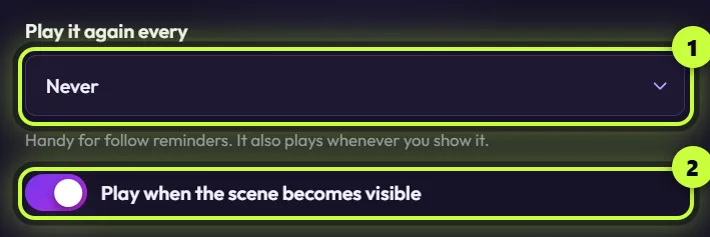
Section titled “When its scene goes live”For elements the app added to OBS, the switch Play when the scene becomes visible plays the element each time it shows up in what OBS sends to your viewers. That’s when you switch to its scene, or when you show the source in the live scene with the eye icon, a hotkey or a Stream Deck button. The switch is on by default. You’ll find it in the Add to OBS dialog (Set up play events).
In OBS Studio Mode, the element plays when you transition its scene to the live side (Program), not while it’s only in Preview.
Play it again every
Section titled “Play it again every”A repeat timer you set in the Add to OBS dialog: Never (the default), 5 minutes, 10 minutes, 15 minutes, 30 minutes or 60 minutes. Under the list the app says “Handy for follow reminders. It also plays whenever you show it.” A follow reminder is an element that asks viewers to follow every so often. It doesn’t react to real follows. The second half is true while Play when the scene becomes visible is on.
- The first repeat comes that many minutes after the source loads (usually when OBS starts), then it repeats at that interval.
- The timer keeps counting while the source is hidden or its scene isn’t live, so some repeats happen where nobody sees them.
- It starts over whenever the source reloads, for example after you change the element.
- It only works for elements the app added to OBS. StreamElements overlays don’t run it.
Play now
Section titled “Play now”Right after you add an element, the It’s in OBS! window has a Play now button. It plays the element in OBS straight away, which is handy for a quick test. See Test your elements.
A hotkey or Stream Deck button
Section titled “A hotkey or Stream Deck button”Showing the source plays it, so any key or button that shows a source becomes a play button. Set this up in Hotkeys and Stream Deck.
- Added by hand in OBS, or a StreamElements overlay: showing the source doesn’t replay it by itself. Tick Shutdown source when not visible in the source’s properties (see the tip above). OBS then reloads the page each time you show it, and the element plays.
- A downloaded video in OBS: in the media source’s properties, tick Restart playback when source becomes active so the video starts over each time you show it or switch to its scene. Other apps have their own options. See Use your videos anywhere.
Follows, subs and tips
Section titled “Follows, subs and tips”You can still use them for big moments. Here’s what streamers do instead:
- Play it on cue. Give the element a hotkey or a Stream Deck button and press it when someone follows. It’s a personal thank-you. See Hotkeys and Stream Deck.
- Remind people on a timer. Set Play it again every to 10 or 15 minutes on a follow tag or subscribe bar.
- Play it on a scene switch. Put a subscribe reminder in your “Just Chatting” scene. It plays every time you switch to that scene.
- Keep your alert service for real alerts. Automatic follow and sub alerts come from services like StreamElements or Streamlabs. Use them side by side with your elements: the alert says who followed, and the element is your call to action.
Live widgets you get in packs, like chat boxes and goals, work differently. They’re always on and don’t “play”. In the app’s words: “This is a live widget: on your stream it shows your real chat and goals. The preview uses demo data.” In OBS (or another app’s browser source), they read the public chat of the Twitch channel in their settings, which fills in from your Twitch handle. That brings in Twitch chat messages, subs, cheers and raids. Follows, tips and other platforms like YouTube or Kick only reach them inside a StreamElements overlay. There, StreamElements’ Emulate test events reach them too. See Use elements from packs.
Elements that stay on screen
Section titled “Elements that stay on screen”Most elements play for a few seconds and fold away. Elements marked Stays on screen, like the Socials Bar, slide in once and then stay put:
- Free
Socials Bar
Socials · Stays on screen
Twitch, YouTube, TikTok, Instagram, X, Kick, Discord, Facebook, Snapchat
- While one is on screen, Play now, the repeat timer and showing the source again don’t restart it. Leave Play it again every on Never for these.
- To play its entrance again, reload the source. Restarting OBS does that, and so does changing the element in the app if the app added it to OBS.
- Want it to slide in each time you show it? Tick Shutdown source when not visible in the source’s properties in OBS. If you later use Update in OBS, the app turns that box off again, so tick it again afterwards.
Good to know
Section titled “Good to know”- One play at a time. If an element is already playing, another trigger doesn’t restart it. Wait until it’s done.
- Changing an element replays it. When you change an element that’s in OBS, the app refreshes the source and it plays once. If that scene is live, your viewers see it. The same goes for changes in Your channel (name, picture, counts): every element in OBS that shows them is refreshed.
- The preview in the app is separate. It loops by itself so you can watch your changes, and it never plays anything in OBS.