Change an element that’s already in OBS
Once an element is in OBS, just keep editing it in the app: your changes show up in OBS by themselves. This page explains the badges, what happens when OBS was closed, and how to move an element or change how it plays.
This is for elements you added with Add to OBS. Added one by hand? See How a hand-added source behaves.
See what’s in OBS
Section titled “See what’s in OBS”On the Elements tab, every element that’s in OBS has a green In OBS badge on its card.
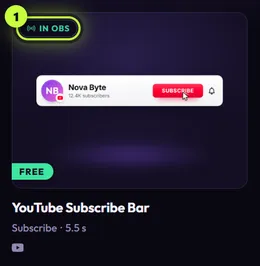
In the editor, the same green In OBS chip sits at the top right, next to Make a copy.

Edit it: OBS updates by itself
Section titled “Edit it: OBS updates by itself”Open the element and change whatever you like. The app saves as you go, and a moment later updates the element in OBS. You don’t need to click anything.
These update your elements in OBS too:
- Changes in Your channel: your channel name, picture or follower counts, including the daily Auto-fetch.
- Reset all changes in the editor (see Make copies and reset changes).
- A new version of the pack an element came from.
- An app update: every element in OBS is rebuilt the next time the app starts.
If OBS was closed: Refresh in OBS
Section titled “If OBS was closed: Refresh in OBS”If OBS is closed, or the app can’t reach it, when something changes, OBS keeps showing the old version for now. The app marks the element so you know:
- its card shows an amber Refresh in OBS badge,
- the editor shows an amber Click Refresh in OBS chip with a Refresh button.
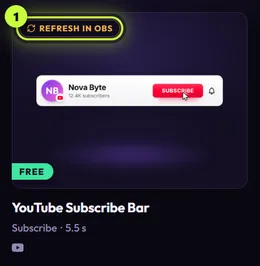
Usually you don’t need to do anything. The next time the app connects to OBS, it updates every waiting element by itself. While some are waiting, it tries again every minute.
To update one right away:
-
Open OBS Studio.
-
In the app, open the element and click Refresh (1). A message says Updated in OBS, and the chip goes back to In OBS.

If the app still can’t reach OBS, a message says why, for example “OBS isn’t answering. Check that it’s open and its WebSocket server is turned on.” Connect the app to OBS explains how to fix each one.
Move it, or change how it plays
Section titled “Move it, or change how it plays”To put an element in another scene or another spot on screen, or to change its play options, use Update in OBS.
-
Open the element and click Add to my stream.
-
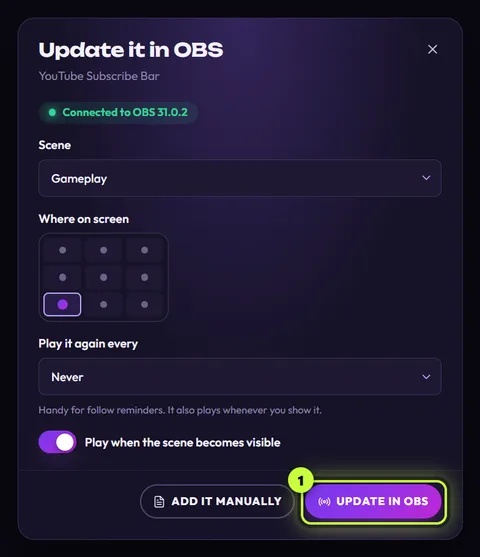
The window is now called Update it in OBS. Set the Scene, Where on screen, Play it again every and Play when the scene becomes visible again, even the ones you don’t want to change. (What each option does.)
-
Click Update in OBS (1).
-
In It’s in OBS!, click Play now to check it (live widgets don’t have it), then Done.
Play it again
Section titled “Play it again”Play now is in the It’s in OBS! window, right after you add or update an element. Any other time, play it from OBS: show the source, switch to its scene, or press its hotkey. Test your elements walks you through it.
Copies, deleting and packs
Section titled “Copies, deleting and packs”- A second version: Make a copy in the editor makes a separate element with its own settings. Add it to OBS and it becomes its own source. See Make copies and reset changes.
- Deleting a copy doesn’t remove its OBS source. As the app says: “This copy and its settings are removed. If it’s in OBS, delete the source there too.”
- Taking an element off your stream: remove its source in OBS. The app notices the next time it tries to update or play it, and the In OBS badge goes away. If you click Play now or Refresh for a source that’s gone, it says “This source isn’t in OBS any more. Add it again.” Adding it again makes a new source.
- Removing a pack: its elements that are in OBS keep showing their last version there, but don’t update any more.
- Reset all changes keeps the play options you chose in the Add to OBS window.