Set up your channel
Tell the app about your channel once: your name, picture, where you stream and your handle (your @name on that platform). Every element then shows it, so there’s nothing to retype. It takes about a minute.
Where to find it
Section titled “Where to find it”- The first time you open the app, the Your channel panel slides in by itself.
- Any time after that, click your channel name in the top-right corner of the app. It’s the button with your round picture and your name, and in these docs we call it the profile chip.

If you skipped setup, the chip reads Set up your channel and glows purple. Click it to open the same panel.

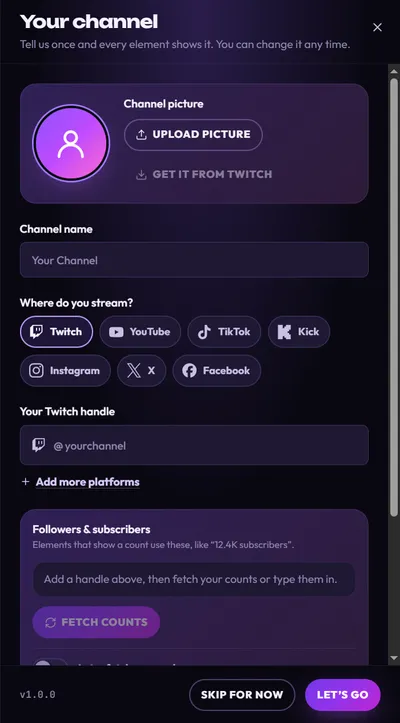
Here’s the panel when it’s still empty:
Fill it in
Section titled “Fill it in”-
Add a picture (optional). Press Upload picture and choose a picture, or drag one onto the round picture. A box opens under it: drag the picture to move it, use Zoom to make it bigger, then press Use this picture. The picture only counts once you’ve pressed it.
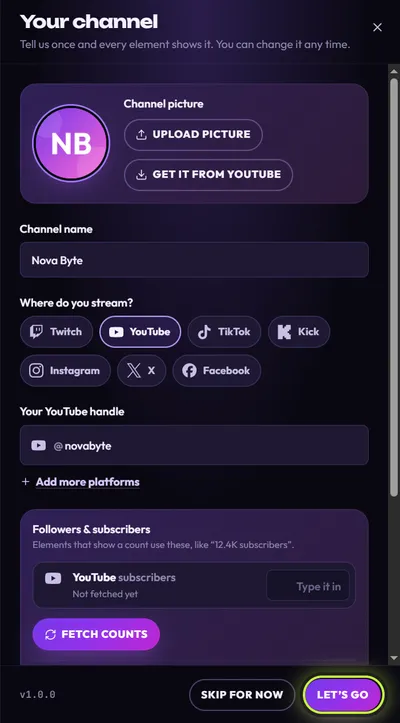
Already use a picture on Twitch, YouTube, TikTok, X or Kick? Do steps 3 and 4 first, then come back and press Get it from YouTube (the button names your platform, and stays grey until you type your handle).
With no picture, elements show colored initials made from your channel name. More in Add your channel picture.
-
Type your channel name in Channel name. This is the name elements show, up to 32 characters.
-
Pick your main platform under Where do you stream?: Twitch, YouTube, TikTok, Kick, Instagram, X or Facebook. Choose the one you stream on most.
-
Type your handle in the box below it (it’s called Your YouTube handle, Your Twitch handle and so on). Type just the name, without the @ and without a link: for
youtube.com/@novabytetypenovabyte. If you do type an @ or a space, the app removes it when you leave the box. -
Add your other platforms (optional). Press Add more platforms to open Other platforms (leave empty to hide) and fill in the ones you use. Leave a box empty if you don’t use that platform. For Discord, paste a server invite link like
discord.gg/novabyte.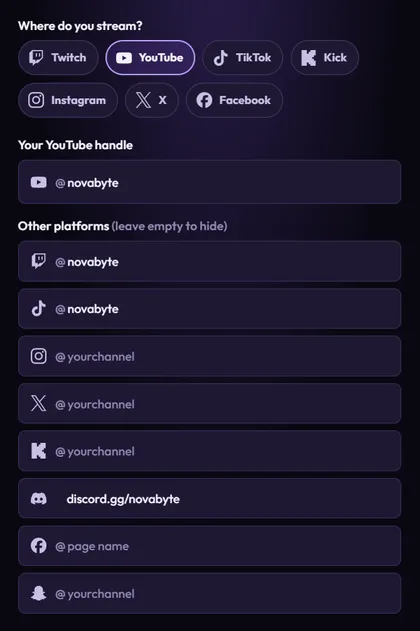
-
Add your follower counts (optional). In Followers & subscribers, press Fetch counts to read your public counts, or type them in. See Show your real follower counts.
-
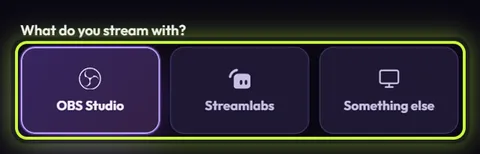
Scroll to the bottom of the panel and, under What do you stream with?, pick OBS Studio, Streamlabs or Something else. This decides what Add to my stream opens later (see the table below).
-
Press Let’s go. (When you open the panel later, this button is called Save.)
What happens next
Section titled “What happens next”After Let’s go, the app shows the Elements tab with the free elements for your main platform. The line under Make it yours now says “Every element below already shows” followed by your channel name.
The cards redraw with your name and picture. While that happens, a line like Adding your channel to 12 cards… shows above the grid, and some cards still show the sample name Your Channel for a moment.
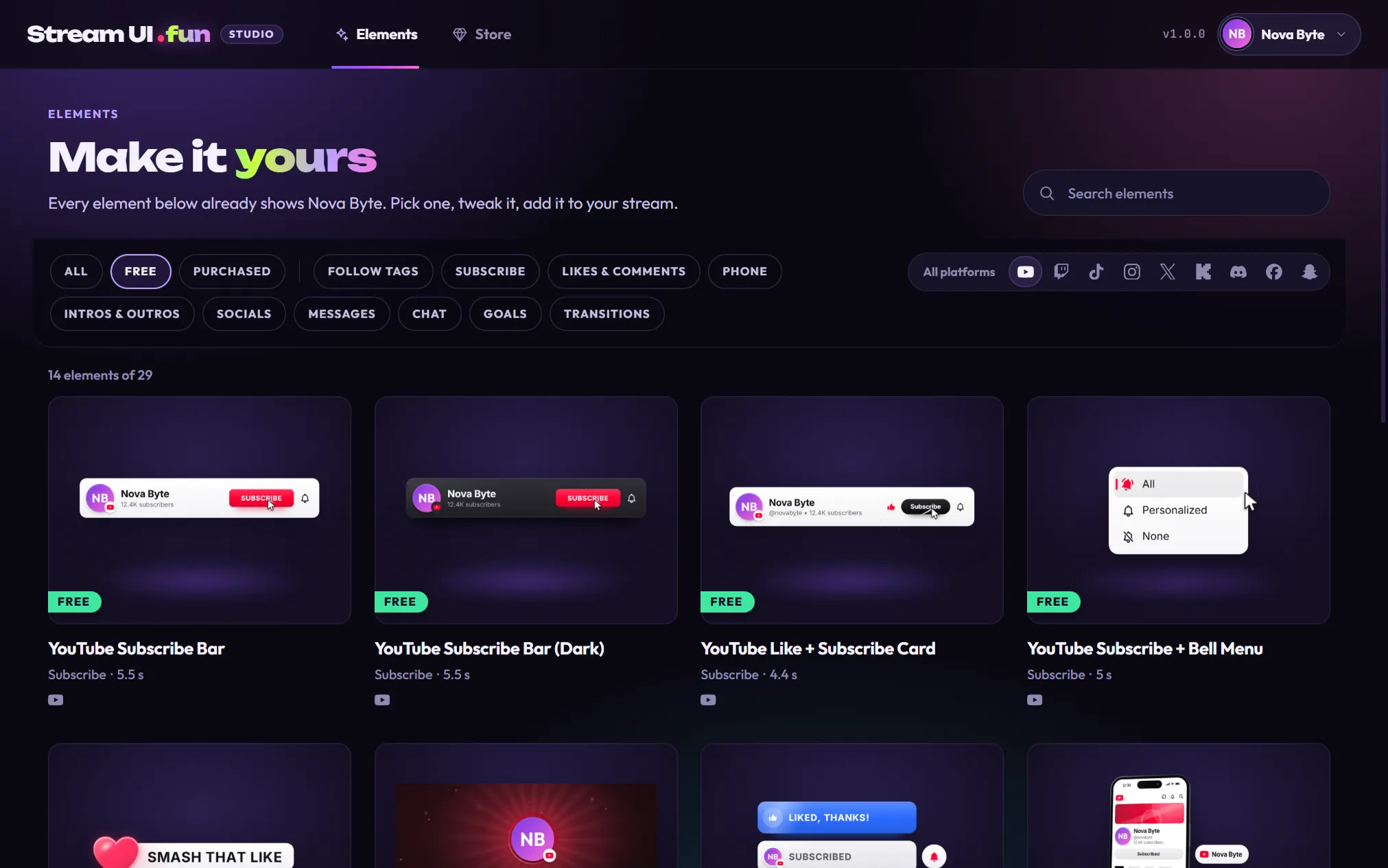
To see every element, click All and All platforms above the grid. The app remembers your choice.
Elements you’ve already added to OBS are updated for you, and each one that changed plays once. If it’s in your live scene, your viewers see it, so change your channel before you go live. See How your channel fills in elements.
What your choices change
Section titled “What your choices change”| Setting | What it changes |
|---|---|
| Channel name | The name on every element, and the initials when you have no picture. |
| Where do you stream? | Which handle box comes first, whether Get it from YouTube (or Twitch, TikTok, X, Kick) is offered for your picture, which count row comes first, and which count goes on elements made for any platform. |
| Your handle and Other platforms | The @name on each platform’s elements, the Socials Bar, and which counts can be fetched. |
| What do you stream with? | What Add to my stream opens. |
What Add to my stream opens for each choice:
| You picked | Add to my stream opens |
|---|---|
| OBS Studio | The Add to OBS window, which puts the element in OBS for you. See Add to OBS Studio. |
| Streamlabs | The step-by-step guide for Streamlabs. See Streamlabs Desktop. |
| Something else | The step-by-step guides, where you pick your app (XSplit, PRISM, Meld, TikTok LIVE Studio, StreamElements and more). See Pick your streaming app. |
Skip for now
Section titled “Skip for now”Not ready? Press Skip for now. Closing the panel with the × or Esc counts as skipping too, and the app won’t ask again on the next start. Elements show the sample name Your Channel until you set up your channel from the Set up your channel chip.
Change it later
Section titled “Change it later”-
Click your profile chip (your picture and name) in the top-right corner.
-
Change what you need in the Your channel panel.
-
Press Save. Every element updates.
Cancel throws away changes to your name, picture, main platform, handles and stream app.