Show your real follower counts
Some elements show a count, like “12.4K subscribers” on the YouTube Subscribe Bar. Until you add yours, a few of them show a sample number (like 12.4K) and the rest leave the count out. Here’s how to put your real counts on them: let the app read them from your public profiles, or type them in yourself.
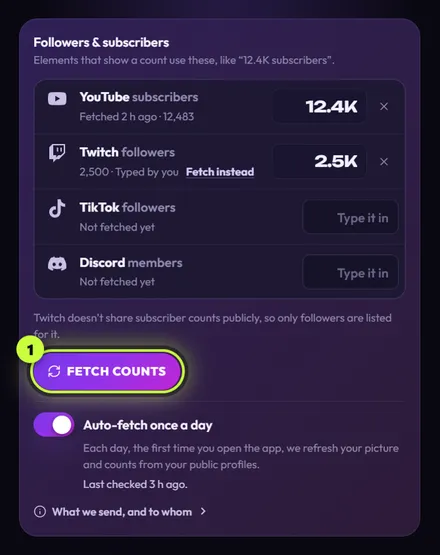
You’ll find your counts in the Followers & subscribers card of the Your channel panel. Every platform with a handle gets its own row, with your main platform first.
Which count each platform has
Section titled “Which count each platform has”| Platform | Count |
|---|---|
| YouTube, Snapchat | subscribers |
| Discord | members (of your server) |
| Twitch, Kick, TikTok, Instagram, X, Facebook | followers |
Twitch and Kick don’t share subscriber counts publicly, so the app only lists followers for them. The card says so under the rows. See Supported platforms for what works on each one.
Fetch your counts
Section titled “Fetch your counts”-
Open the Your channel panel and scroll to Followers & subscribers.
-
Check there’s a row for each platform you added. A row that says Not fetched yet is ready to fetch.
-
Press Fetch counts (1). It shows Fetching… while the app reads your public profiles.
A real YouTube count over 1,000 shows an About tag instead of the exact number (see the table below). -
Each row now shows your count and Fetched just now. A line next to the button sums it up, like Updated 3 counts. If some didn’t work, it says Updated 2 of 3 counts. The others say why. and the message is under that row (see When a count can’t be read).
Other lines you may see: Updated your count. (you have one count), Your count couldn’t be updated. Its row says why. or None of your counts could be updated. Each row says why. Counts you typed yourself are skipped, and then the line ends with Counts you typed stay as they are.
Your elements show the new counts right away. Elements already in OBS update too, and each one whose count changed plays once, so fetch before you go live. There’s no need to press Save for counts, and Cancel doesn’t undo them.
Pressing Fetch counts also saves the handles you’ve typed so far, so the counts match them.
What the line under each row means
Section titled “What the line under each row means”| You see | It means |
|---|---|
| Not fetched yet | You’ve added a handle, but haven’t fetched or typed its count. |
| Fetched 2 h ago · 2,513 | When the count was read, plus the exact number behind the short one when the platform shares it (like Twitch, Kick, X and Discord). |
| About (small tag) | The platform rounds this count, so it’s close but not exact. YouTube rounds counts above 1,000 (like 21.4M). |
| Found @handle | The app found your account under a different name than you typed. Check it’s yours. For Discord, Found is followed by your server’s name. |
| Cached copy from Oct 21 | X didn’t answer, so the app used a saved copy that can be a few days old. |
| New handle: press Fetch counts | You changed the handle. Fetch again to get the count for the new one. |
| 2,500 · Typed by you | You typed this count yourself. |
| Typed by you · No Twitch handle (or another platform) | You removed that platform’s handle, but the count you typed is still kept. Press the × next to it to clear it. |
| Your subscriber count is hidden on YouTube. Type it in if you want to show it. | The count is hidden on the platform, so it can’t be read. Elements leave their count line out rather than show a number that isn’t yours. Type it in if you want it shown. |
Type a count yourself
Section titled “Type a count yourself”Typing works for every platform. It’s the way to go when a count can’t be read, or when you’d rather pick the number yourself.
-
Click the box that says Type it in on the platform’s row.
-
Type your count, like
8900or12.4K.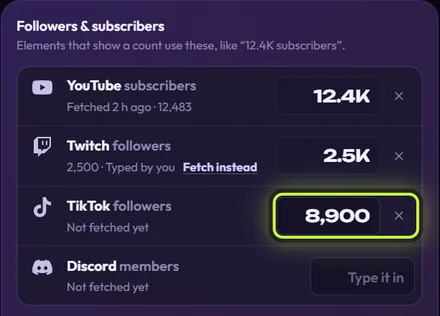
-
Press Enter or click somewhere else. The count saves straight away and the row says Typed by you. The box shows the short form, like 8.9K.
You can type counts like these:
| Works | Doesn’t work |
|---|---|
12483, 12,483, 12 483 |
1e6 |
12.4K, 1.2M, 3B |
12k5 |
5 000, 1 subscriber |
28.742 (a dot between thousands) |
No or No followers (counts as 0) |
21,4K (a comma as the decimal point) |
The box holds up to 12 characters. If the app can’t read what you typed, it says Type a number, like 1250 or 12.4K. under the row.
Go back to the fetched count
Section titled “Go back to the fetched count”Fetch counts never replaces a count you typed. To swap a typed count for the real one, press Fetch instead on that row.
If every count is typed, Fetch counts is greyed out and the card says Your counts are typed in. To fetch one, press “Fetch instead” on its row.
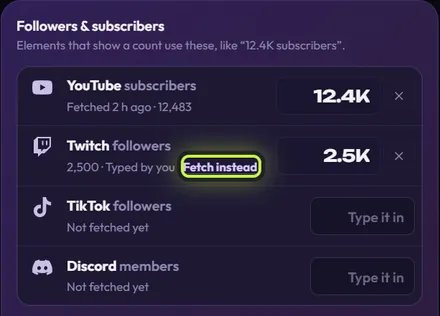
If the platform hides that count, the app keeps the one you typed and tells you so.
Remove a count
Section titled “Remove a count”Press the × next to a count. It’s removed right away. Your elements go back to their sample number, or leave the count out if they don’t have one. As long as that platform has a handle, the next fetch (or Auto-fetch) reads its count again.
Auto-fetch once a day
Section titled “Auto-fetch once a day”Turn on Auto-fetch once a day and your counts stay fresh without you doing anything. It’s off until you turn it on.
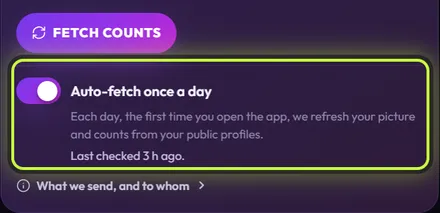
Here’s what it does:
- When: each day, the first time you open the app, a few seconds after it starts. If the app stays open overnight, it runs the next time you open the app, for example from its shortcut.
- What: it refreshes every count that has a handle, except counts you typed. It also refreshes your picture if you got it with Get it from … (a picture you uploaded is never touched). See Add your channel picture.
- Quietly: there are no pop-ups in the app. Elements in OBS whose count changed are updated and play once, so open the app before you go live. Under the switch, Last checked 3 h ago. shows when it last ran. If a platform couldn’t be read, it adds which one, like TikTok couldn’t be read then. Press Fetch counts to see why.
- Offline? If everything failed because you weren’t connected, it tries once more 5 minutes later.
The switch saves the moment you flip it.
What we send, and to whom
Section titled “What we send, and to whom”Press What we send, and to whom at the bottom of the card to see exactly who the app asks for each of your counts and your picture.
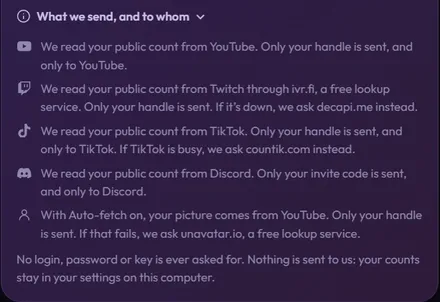
In short:
- The app only reads public counts. It never asks for a login, password or key.
- Only your handle is sent (for Discord, only the invite code), and only when you press Fetch counts, Fetch instead or Get it from …, or once a day if Auto-fetch is on.
- Some platforms are read through a free lookup service: Twitch through ivr.fi (or decapi.me), X through fxtwitter.com (or vxtwitter.com), and TikTok through countik.com when TikTok is busy.
- TikTok and X pictures come through unavatar.io, a free lookup service, which is also the backup for YouTube pictures.
- Nothing is sent to Stream UI. Your counts stay in your settings on your computer.
More in Privacy: what the app sends.
When a count can’t be read
Section titled “When a count can’t be read”Counts come from public pages and free lookup services, which can change or be blocked at any time, so a fetch doesn’t always work. When it doesn’t, the reason shows under that row, and typing the count in always works. Here are the messages, with Twitch or Instagram as examples; yours name your platform.
| Message | What to do |
|---|---|
| We couldn’t find “novabyte” on Twitch. Check the name. | Check the spelling of your handle (just the name, no @ or link), then fetch again. |
| Couldn’t reach Twitch right now. Try again in a little while. | You may be offline, or the site is down. Try again later. If you had a count before, it says We kept your last count. instead. |
| Twitch asked us to slow down. Try again in a few minutes. | Wait the time it says, then fetch again. |
| Instagram didn’t let us read your count right now. Type it in instead. | The platform blocked the read (Instagram often does). Type your count in. |
| Instagram changed its page, so we couldn’t read the count. Type it in for now. | Type your count in. |
| We couldn’t read your Instagram count right now. Type it in instead. | Type your count in, or try again later. |
| Counts need an invite link, like discord.gg/abc123. | You typed a server name for Discord. Paste a server invite link instead. |
| That Discord invite doesn’t work any more. Make a new invite that never expires and paste it above. | In Discord, create an invite set to never expire, and paste it into the Discord box. |
Which elements show a count
Section titled “Which elements show a count”These free elements show a count from your channel. YouTube ones show your YouTube subscribers, Twitch, Kick, TikTok, X, Instagram and Facebook ones your followers on that platform, and the Discord Invite Tag your server’s members.
- Free
YouTube Subscribe Bar
Subscribe · 5.5 s
YouTube
- Free
YouTube Like + Subscribe Card
Subscribe · 4.4 s
YouTube
- Free
YouTube Channel Intro
Intros & outros · 5 s
YouTube
- Free
YouTube Phone Channel
Phone · 6 s
YouTube
- Free
Twitch Heart Follow Tag
Follow tags · 6.2 s
Twitch
- Free
Kick Live Follow Tag
Follow tags · 4.8 s
Kick
- Free
TikTok Avatar Follow
Follow tags · 4.3 s
TikTok
- Free
X Follow Tag
Follow tags · 4.5 s
X
- Free
Instagram Gradient Follow Tag
Follow tags · 5 s
Instagram
- Free
Instagram Phone Profile
Phone · 5.4 s
Instagram
- Free
Facebook Follow Tag
Follow tags · 4.5 s
Facebook
- Free
Discord Invite Tag
Follow tags · 5 s
Discord
To change the count on one element only, or see where it comes from, see How your channel fills in elements.