Customize an element
Click any card in the Elements tab to open it in the editor. There you fill in your words and picture, watch the result play live, and you’re done: every change saves by itself.
The editor at a glance
Section titled “The editor at a glance”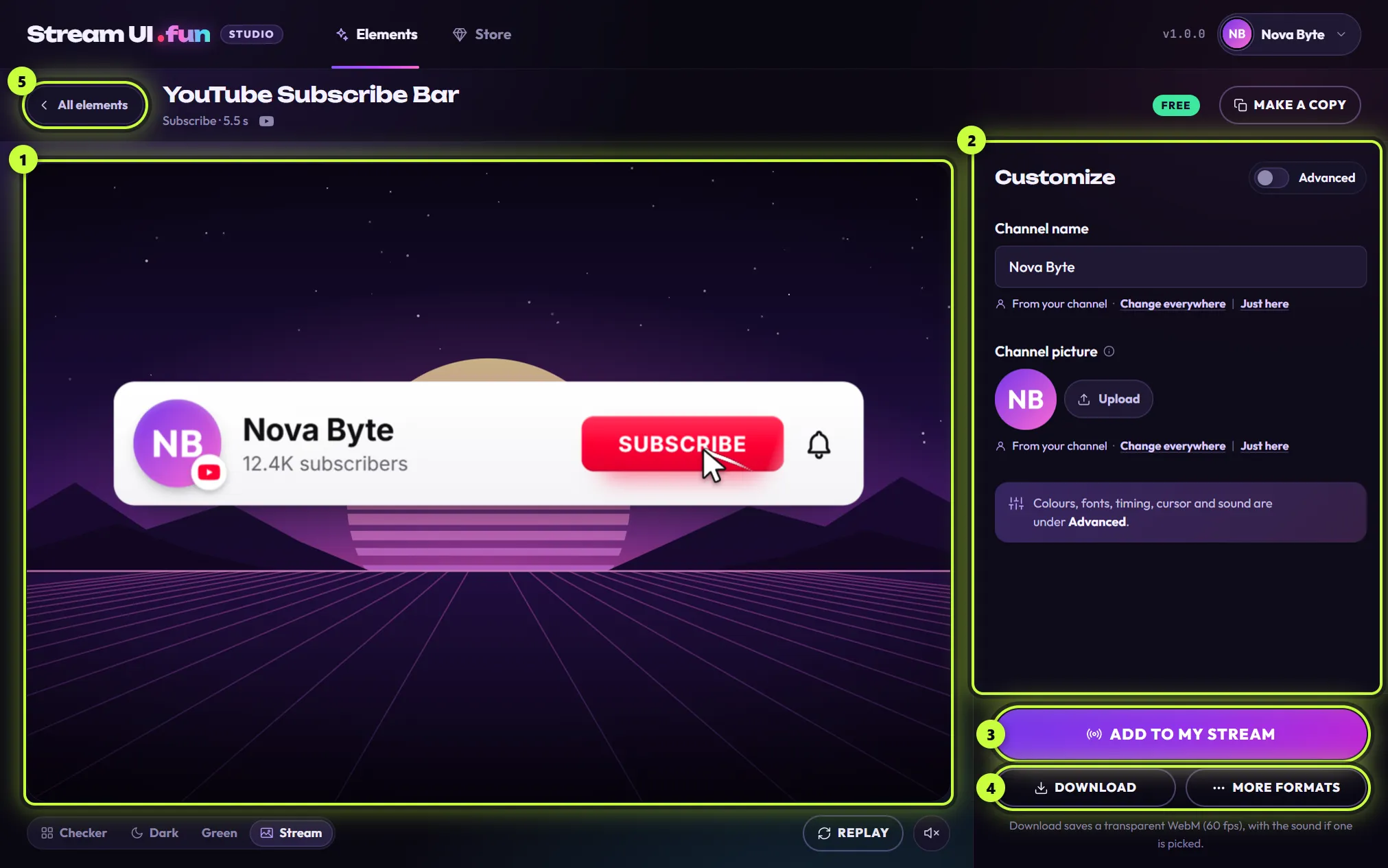
- At the top: the All elements button (5) takes you back to the grid. Next to it are the element’s name and type line (like Subscribe · 5.5 s), then the Free or Owned label and Make a copy.
- On the left: the live preview (1). This is the real element, playing with your settings.
- On the right: the Customize panel (2) with your settings and the Advanced switch.
- At the bottom right: Add to my stream (3) puts the element on your stream. There it plays on cue, for example when its scene goes live, on a repeat timer or with a hotkey. It doesn’t react to real follows or subs by itself (see How elements play). Download and More formats (4) save it as a video or in other formats.
Customize an element
Section titled “Customize an element”-
In the Elements tab, click the card you want. The editor opens. Unless you’ve turned on Advanced, you see the short Basic view.
-
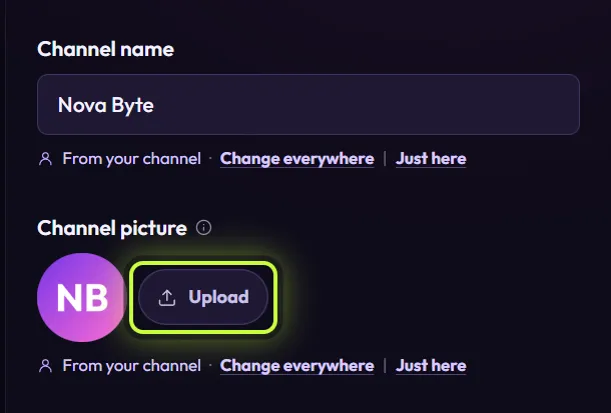
Look at the fields in the Customize panel. Basic view shows only what this element needs from you. For YouTube Subscribe Bar that’s Channel name and Channel picture; other elements ask for a handle, a message or a headline.
-
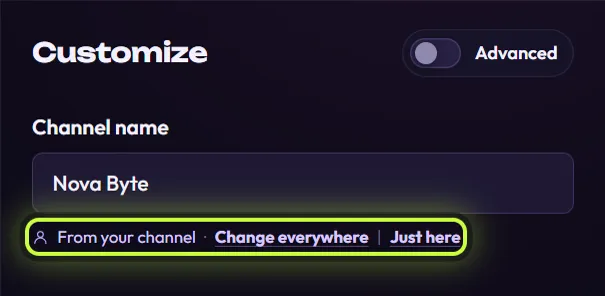
Type in a box to change it. The preview updates as you type and plays again from the start a moment after you stop. If the box says From your channel, what you type changes this element only. To change your name or handle in every element, click Change everywhere instead (more below).
-
To use a different picture, click Upload next to the picture. See Add a picture below.
-
Want different colors, a font, timing, a cursor or a sound? Turn on Advanced. Everything is explained in Advanced settings.
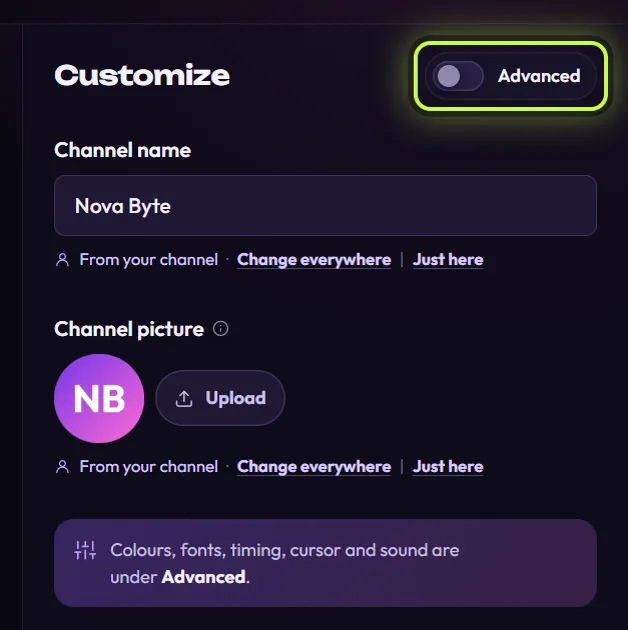
-
When you’re happy, click All elements at the top left (or click an empty spot, then press Esc). There’s no Save button: your changes are already saved.
Your channel or just this element
Section titled “Your channel or just this element”When a field shows From your channel, its value comes from your channel details, which every element shares. Under it you get two choices:
- Change everywhere opens Your channel. What you change there shows up in every element.
- Just here puts your cursor in the box, so you can type something different for this element only. On a picture field, it opens the file picker.
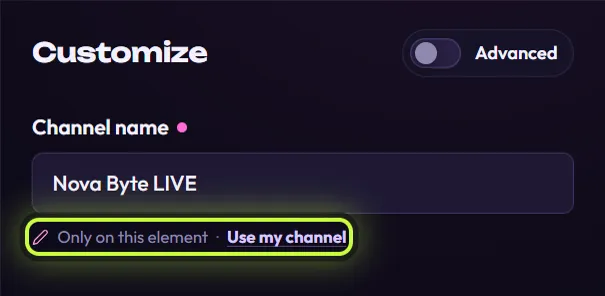
Typing straight into the box does the same as Just here. After a “just here” change, the field gets a pink dot and the line reads Only on this element. Click Use my channel to go back to your channel’s value.
For the full story, see How your channel fills in elements.
Add a picture
Section titled “Add a picture”-
Click Upload next to the picture field (in the Advanced view it’s the small upload icon).
-
Choose a picture on your computer: a PNG, JPG, WebP, GIF or SVG file of up to 20 MB.
-
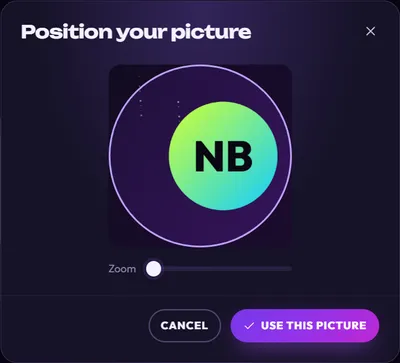
In Position your picture, drag the picture (or use the arrow keys) to place it inside the guide. Zoom with your mouse wheel or the Zoom slider.
-
Click Use this picture. The preview updates straight away.
Good to know:
- A picture you upload here is used only in this element. To change your picture in every element, use Change everywhere or see Add your channel picture.
- Animated GIFs work, but only their first frame is used.
- Some pictures aren’t cropped, like Channel banner in YouTube Phone Channel. The app uses the whole picture.
- If a channel or profile picture field is empty, the element shows colored initials instead (an empty Channel banner shows gradient art). Hover the ⓘ next to the field name to see what an empty field does.
If the picture doesn’t work, the app tells you why:
| Message | What to do |
|---|---|
| That picture is bigger than 20 MB. Pick a smaller one. | Save a smaller copy of the picture, or take a screenshot of it. |
| That file isn’t a picture. Pick a PNG, JPG, WebP, GIF or SVG. | Choose a picture file, not a video or a document. |
| That picture couldn’t be opened. Try a PNG or JPG. | The file may be damaged or in an unusual format. Save it again as PNG or JPG. |
The preview
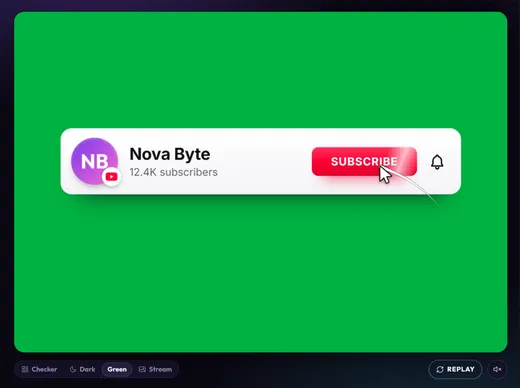
Section titled “The preview”The preview plays the element over and over, so you can watch your changes (an element that stays on screen, like the Socials Bar, simply stays up). The buttons under it change only what you see in the app, never the element itself.

-
Backgrounds: see the element on different backdrops.
- Checker: a checkerboard shows which parts are see-through.
- Dark: a plain dark background.
- Green: a green screen.
- Stream (the starting choice): a sample stream scene, so you can judge how it looks over a game.
On your stream, your own scene shows behind the element. The app remembers your pick for every element.
-
Replay plays the element again from the start.
-
Sound (the speaker button) turns the preview’s sound on or off. The preview starts muted every time you open an element. You only hear something if the element has a sound picked (see Sound and effects).
If you’ve turned off animations on your computer (animation effectsReduce motionanimations in your system settings), the preview plays once instead of looping. Click Replay to see it again.
Some pack elements show Nothing to fill in here. Turn on Advanced to see every setting. in the Basic view. They have nothing you need to fill in, but you can still change their look under Advanced.
Your changes save by themselves
Section titled “Your changes save by themselves”- There’s no Save button. The app saves a moment after you stop typing, as soon as you pick something, and when you leave the editor.
- Each card has its own settings. Changing YouTube Subscribe Bar doesn’t change YouTube Subscribe Bar (Dark). Want two versions of one element? Make a copy.
- If the element is already in OBS, the app updates it there for you. If it can’t reach OBS, the editor shows an amber Click Refresh in OBS label with a Refresh button next to it. See Change an element that’s already in OBS.
- If you ever see Your change couldn’t be saved. Please try again., make the change once more. If it keeps happening, restart the app.
Leave the editor
Section titled “Leave the editor”Click All elements at the top left, press Esc, or click the Elements tab. Esc works once you’ve clicked away from the settings: it does nothing while a box, slider, switch or list is selected.