Streamlabs Desktop
Streamlabs Desktop shows your elements with a browser source: a source that displays a web page, here a small file the app keeps on your PC. The app gives you the file and the steps, and it takes about a minute.
Open the Streamlabs guide in the app
Section titled “Open the Streamlabs guide in the app”Already picked Streamlabs when you first opened Stream UI Fun Studio? Skip to step 3.
-
Click your channel name at the top right of the app. If you haven’t set up your channel yet, it says Set up your channel. The Your channel panel opens.

-
Scroll down to What do you stream with?, click Streamlabs, then click Save. You only do this once: the app remembers it.
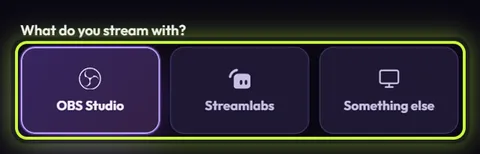
OBS Studio is picked in this picture. Click Streamlabs instead. -
In Elements, click the element you want. It opens in the editor, where you can customize it first.
-
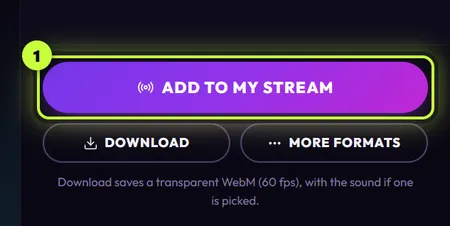
Click Add to my stream (1), at the bottom right of the editor.
-
The Add it to your stream window opens on Streamlabs Desktop.
Copy the path and note the size
Section titled “Copy the path and note the size”The top of the guide shows The file for a browser source (Local file):
- Click Copy path (1). The button says Copied for a moment, and the path is ready to paste.
- Note the size (2), shown next to Show in folder, for example Size 1000 × 340. You’ll type it into Streamlabs in a moment.
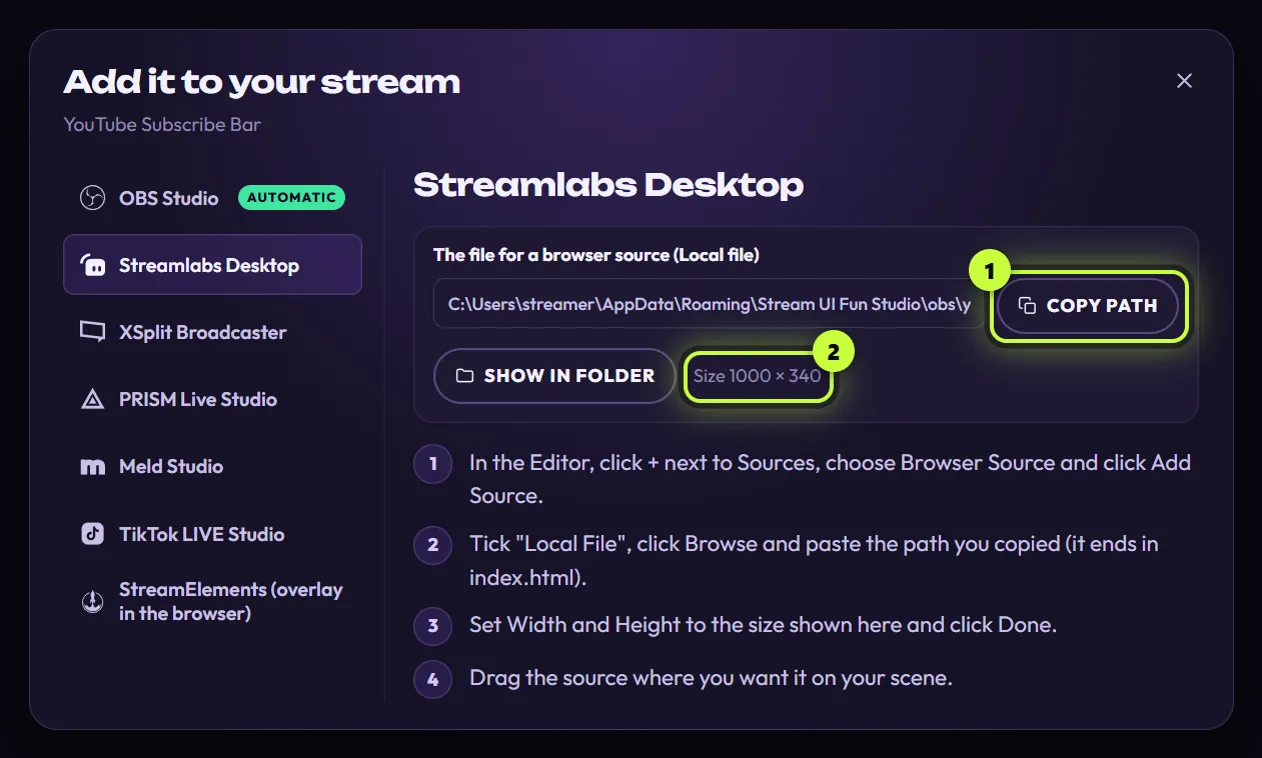
Keep this window open while you work in Streamlabs, so you can check the steps and the size.
Add it in Streamlabs Desktop
Section titled “Add it in Streamlabs Desktop”These are the app’s four steps, with a little more detail.
-
In Streamlabs Desktop, open the Editor and pick the scene you want the element in. Click + next to Sources, choose Browser Source and click Add Source. If Streamlabs asks for a name, use the element’s name so it’s easy to find later.
-
In the source’s settings, tick Local File and click Browse. In the window that opens, click in the File name box, press Ctrl + V to paste the path you copied,press Cmd + Shift + G, press Cmd + V to paste the path you copied, press Returnpress Ctrl + L, press Ctrl + V to paste the path you copied, and click Open. The path ends in
index.html. -
Set Width and Height to the size shown in the app (for example 1000 and 340), then click Done.
-
Drag the source where you want it on your scene. Drag its corners to make it bigger or smaller.
The element plays once as soon as the source loads, so you may just catch it sliding in and out. That’s a good sign: it works.
The file has everything the element needs, so Stream UI Fun Studio doesn’t have to be open while you stream. Open it when you want to change the element, and it updates the file for you.
How it plays in Streamlabs
Section titled “How it plays in Streamlabs”- It plays once each time the source loads: when you add it, when Streamlabs Desktop starts, and when you refresh the source.
- Between plays, the source is see-through. After the animation it disappears, so an “empty” source is normal. Elements that stay on screen, like Socials Bar, animate in and then stay.
- There’s no repeat timer here. Play it again every and Play when the scene becomes visible are options of the automatic Add to OBS dialog, which only works with OBS Studio. The Streamlabs guide doesn’t set them.
- Also added it to OBS with the app? Then OBS and Streamlabs use the same file, so the play settings you picked in Add to OBS come along. A Play it again every time repeats the element in Streamlabs too, and Play when the scene becomes visible may make it play when you switch to its scene. To keep them apart, add a copy to Streamlabs instead. Make the copy before you add the element to OBS: a copy starts with the play settings of the element it’s made from.
- It doesn’t react to follows or subs. Free elements are animations you play on cue, not alerts. How elements play explains this in more detail.
Make it play when you want (optional)
Section titled “Make it play when you want (optional)”Streamlabs Desktop’s browser sources are built on the same parts as OBS’s, so the source’s settings (double-click the source) usually include these two options:
- Refresh browser when scene becomes active: the element plays every time you switch to its scene.
- Shutdown source when not visible: the element plays every time you show the source (the eye icon next to it). Pair this with a key for showing the source in Settings → Hotkeys, and that key becomes a “play” button.
Update it after you change something
Section titled “Update it after you change something”You don’t need to copy the path again. When you change the element (or your channel name or picture), the app updates the file at the same path within a couple of seconds. Streamlabs keeps showing the old version until the source reloads:
-
Make your changes in the app’s editor.
-
In Streamlabs Desktop, double-click the source to open its settings and click the refresh button (it’s usually called Refresh cache of current page). Restarting Streamlabs works too.
-
The element plays again with your changes.
Want two versions of the same element, like a Light one and a Dark one? Make a copy. Each copy has its own path, so you can add both.
Test it before you go live
Section titled “Test it before you go live”-
In Streamlabs Desktop, switch to the scene with the element.
-
Double-click the source and click Refresh cache of current page. Watch the element play once.
-
Check that it’s the right size and in the right spot.
Happy with it? Don’t refresh the source again while that scene is live.
If something looks wrong
Section titled “If something looks wrong”- The source stays empty. It probably already played. Refresh the source and watch it.
- Streamlabs shows a blank page or an error. Check that Local File is ticked and that the path ends in
index.html. - It’s cut off or the wrong size. Set Width and Height to exactly the size shown in the guide.
- Copy path didn’t work. The app says “Couldn’t copy. Select the text and press Ctrl+C instead.” Click in the path box, press Ctrl + ACmd + A, then Ctrl + CCmd + C.
More fixes are in Troubleshooting.