Use elements from packs
Most elements from a pack work just like the free ones: you customize them, then add them to your stream. Three kinds need a little extra know-how: live widgets (chat boxes and goal bars), transitions and ready-made files (like stickers and stinger transitions). This page shows how to use each one.
What’s in your pack
Section titled “What’s in your pack”The line under each card’s name tells you what kind of element it is:
| The card says | What it is | How to use it |
|---|---|---|
| Live widget, like Chat · Live widget or Goals · Live widget | A chat box or goal bar that shows live data on your stream | Live widgets: chat and goals |
| Transition and a length, like Transitions · Transition · 2.4 s | An animation for switching scenes | Transitions |
| Ready-made file, like Sticker · Ready-made file or Stinger transition · Ready-made file | A finished video, picture or other file | Ready-made files |
| A category and a length (or Stays on screen), like Subscribe · 5.5 s | An animation, like the free elements | Customize it, then add it to your stream. |
Live widgets: chat and goals
Section titled “Live widgets: chat and goals”A live widget is always on screen and shows what happens on your channel: chat messages, or a goal bar that fills up. It doesn’t “play” like an animation, so there are no play options, no Replay and no video to download.
Add a live widget to OBS
Section titled “Add a live widget to OBS”-
Add your Twitch handle in Your channel: pick Twitch under Where do you stream?, or add it under Add more platforms. Live widgets fill in their Twitch channel from there. See Set up your channel.
-
In the Elements tab, click the widget’s card. The editor opens.
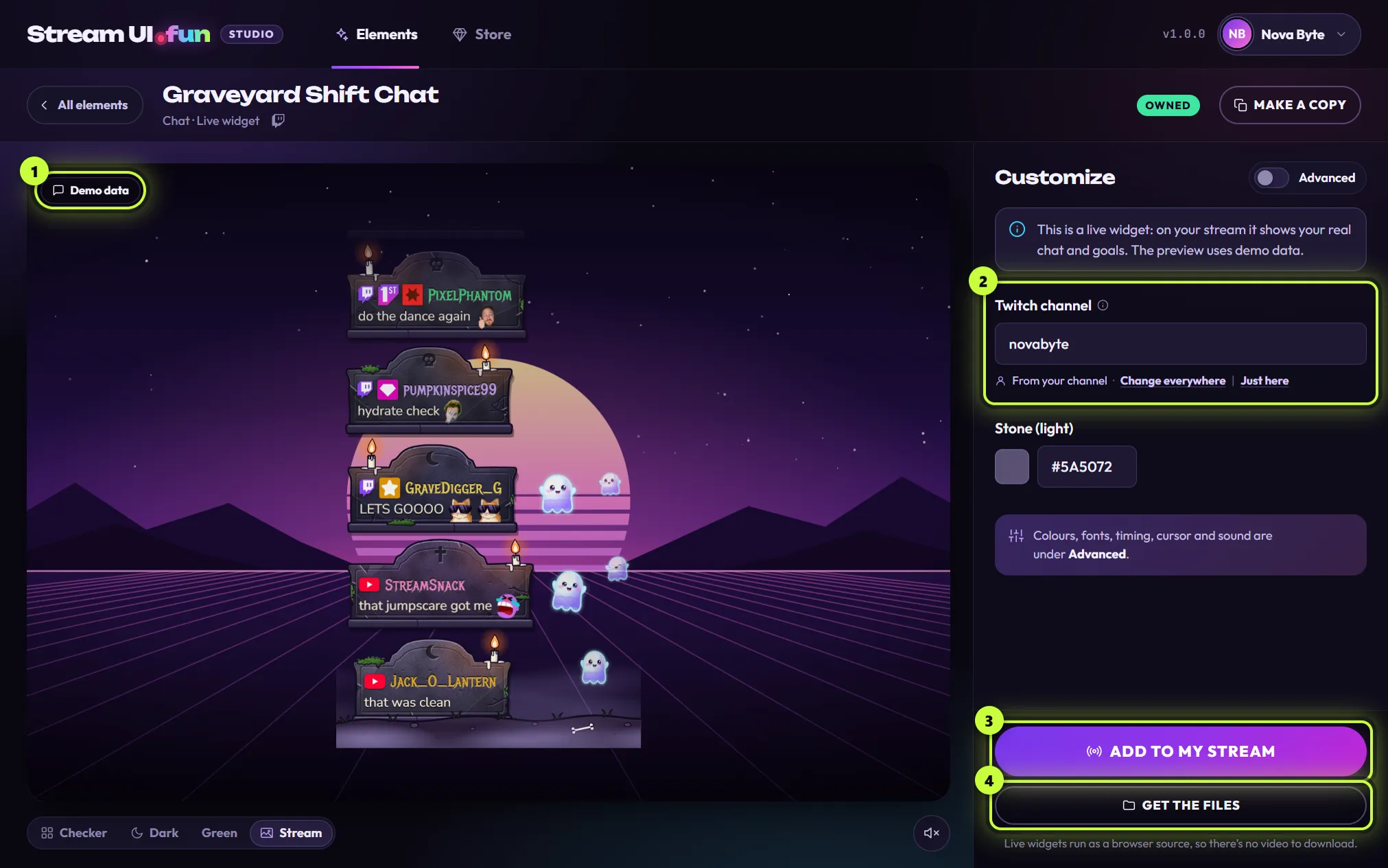
The preview shows a Demo data chip (1). In the app, live widgets always run on made-up messages and numbers, so you can see how they look. The panel says so too: “This is a live widget: on your stream it shows your real chat and goals. The preview uses demo data.”
-
Check the Twitch channel box (2). It says From your channel and shows your Twitch handle. To read a different channel, just type its name in the box. On goal widgets the box may be called Twitch channel (live events).
-
Customize it like any element: your words in the Basic view, and colors, fonts and the widget’s own settings under Advanced (see Goal settings and Chat settings below).
-
Click Add to my stream (3). In Add to OBS, pick the Scene and a spot under Where on screen. For live widgets it starts on Top left, and there are no play options. Click Add to OBS.
-
In It’s in OBS!, click Done. There’s no Play now: the widget is already running.
-
Test a chat widget: type a message in your Twitch chat. It shows up in OBS within a few seconds. A goal bar moves when something it counts happens on your channel (see Goal settings).
Using Streamlabs Desktop, XSplit, PRISM or Meld? Add to my stream opens the Add it to your stream guides instead: pick your app in the list and follow its steps. The widget works there as a browser source too. There’s no TikTok LIVE Studio guide for live widgets, because they can’t be a video. See Pick your streaming app.
Goal settings
Section titled “Goal settings”Goal widgets have a Goal group under Advanced. The names can differ a little from pack to pack.
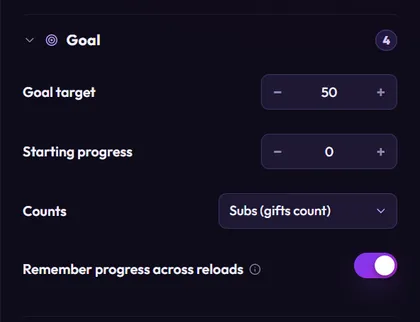
| Setting | What it does |
|---|---|
| Goal target | The number the bar fills up to, like 50. |
| Starting progress | Where the bar starts, for example 12 if you already have 12 of your 50 subs. Changing it starts the bar again from the new number. |
| Counts | What fills the bar: Subs (gifts count), Tips (amount), Cheers (bits / 100), Follows, Any event (+1) or Manual only. |
| Remember progress across reloads | Keeps the progress when OBS restarts. It starts on. |
Good to know:
- Tips and Follows only count inside a StreamElements overlay. Straight in OBS, the bar doesn’t move for them.
- Subs (gifts count) counts gifted subs too: a gift of 5 subs adds 5.
- Cheers (bits / 100) counts 100 bits as 1, so 500 bits adds 5.
- Any event (+1) adds 1 for every sub, cheer or raid (and every follow or tip in StreamElements).
- Manual only means nothing moves the bar by itself. Change Starting progress to set where it is.
- Click − or + next to a number to change it one step, or type a number. Numbers outside the allowed range are brought back into range.
Chat settings
Section titled “Chat settings”Chat widgets keep their chat options in the Data group under Advanced. Again, the names can differ a little from pack to pack.
| Setting | What it does |
|---|---|
| Max messages | How many messages show at once. The highest number depends on the widget, often 30. |
| Hide after (s, 0 = never) | Removes each message after this many seconds. 0 keeps them until newer ones push them out. |
| Hide !commands | Hides messages that start with !, like !uptime. It starts on. |
| Ignore users (comma separated) | Names whose messages never show. It starts with common bots: Nightbot, StreamElements, Streamlabs, Moobot. |
| Twitch channel | The channel to read chat from. It fills in from your channel. |
Use it through StreamElements
Section titled “Use it through StreamElements”For follows, tips, or chat from other platforms, run the widget inside a StreamElements overlay. There it gets its chat and events from StreamElements instead of the Twitch channel box.
-
In the widget’s editor, click Get the files (4 in the picture above). The Get the files window opens with two choices: HTML folder and StreamElements. (For other elements, this window is called More formats.)
-
Click StreamElements, then Show the code.
-
Paste the code into a custom widget in your StreamElements overlay and add the overlay to your streaming app. Every step is on StreamElements.
-
Test it. A goal widget reacts to StreamElements’ Emulate test events, as long as the test is something the goal counts (for example a test tip for a goal set to Tips (amount)). The free elements don’t react to these. To test a chat widget, type a message in your chat.
A goal that counts subs, tips, cheers or follows can start from StreamElements’ own count for that goal when the overlay loads, instead of its Starting progress.
The code is a snapshot. If you change the widget in the app later, paste the code again.
HTML folder saves the widget as a folder for OBS on a second PC. See OBS on a second PC.
Transitions
Section titled “Transitions”Pack transitions (the card says Transition) work like the free elements: you customize them, click Replay, and they have Download, More formats and the play options in Add to OBS.
There are two ways to use one:
- On cue: Add to my stream puts it in a scene like any element, and it plays the same ways, for example with a hotkey. A full-screen transition covers the screen, but OBS doesn’t switch scenes with it. See How elements play.
- As a real scene transition: click Download to save a see-through WebM video, with its sound if one is picked. Then set it up in OBS as a stinger, like a ready-made stinger.
Ready-made files
Section titled “Ready-made files”Ready-made files are finished videos, pictures and other files. There’s nothing to customize: you add the file to your streaming app as it is.
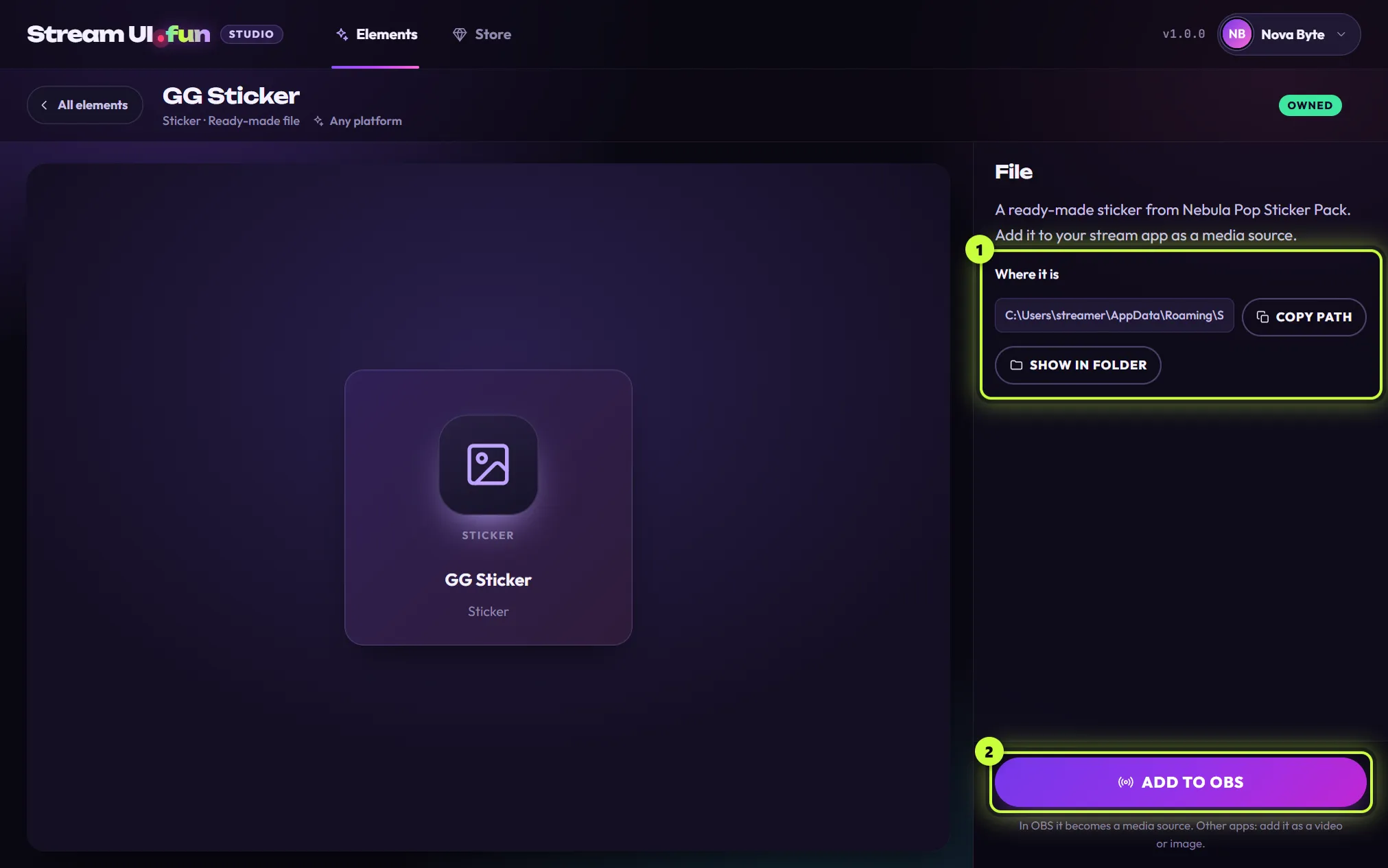
When you click one, you see:
- Where it is (1): where the file is saved on your computer. Copy path copies that address, and Show in folder opens the folder with the file selected.
- Add to OBS (2): the steps to add the file to OBS yourself.
There’s no animated preview, no Customize panel, no Make a copy and no Download: the file is already finished. If Show in folder says That file isn’t there anymore., the file was moved or deleted. Drop the pack’s .zip on the app again: the same version installs again and puts back a fresh copy (see Import and unlock your purchase).
Kinds of files
Section titled “Kinds of files”The card’s type line names the kind of file:
| The card says | What it is | Use it in OBS as |
|---|---|---|
| Sticker | A picture or short clip to show on stream | An Image source (a picture) or a Media Source (a video) |
| Looping video | A video made to repeat, like an animated background | A Media Source with Loop ticked |
| Video | A video | A Media Source |
| Image | A picture | An Image source |
| Stinger transition | A video that plays while you switch scenes | A Stinger in Scene Transitions (see below), not a source |
| OBS scene collection | A ready-made set of OBS scenes | An import (see below) |
| Document | A guide or other document | Not for your stream (skip the app’s Add to OBS steps). Click Show in folder and open it from there. |
Not sure if a file is a video or a picture? Look at the end of its path: .webm, .mov, .mp4 and .m4v are videos; endings like .png, .jpg, .webp and .gif are pictures.
Add a video or picture to OBS
Section titled “Add a video or picture to OBS”-
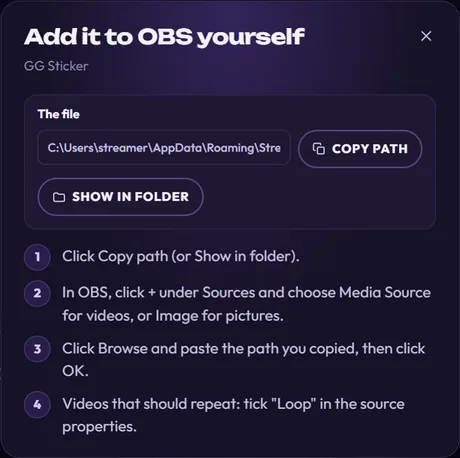
Open the file in the Elements tab and click Add to OBS. The Add it to OBS yourself window opens.
-
Click Copy path (or Show in folder).
-
In OBS, click + under Sources and choose Media Source for videos, or Image for pictures.
-
Click Browse, paste the path you copied, then click OK.
-
For a video that should repeat, like a Looping video, tick Loop in the source’s properties.
The app doesn’t add files to OBS for you, so a file never gets an In OBS badge, and there’s nothing to refresh: you can’t change the file in the app.
OBS plays the file from the folder where the app keeps it. If you remove the pack in My purchases, the file is deleted too and OBS can’t show it any more.
Set up a stinger transition in OBS
Section titled “Set up a stinger transition in OBS”A stinger plays over your stream while OBS switches scenes underneath it. It isn’t a source: it goes in OBS’s Scene Transitions. In OBS 30 and 31:
-
In the app, open the stinger and click Copy path.
-
In OBS, find the Scene Transitions dock (if it’s hidden, turn it on under Docks). Click +, choose Stinger, give it a name and click OK.
-
Next to Video File, click Browse and paste the path you copied.
-
Set Transition Point Type to Time (milliseconds) and type the transition point: the moment the animation covers the whole screen. You’ll find it in the specs on the product page on streamui.fun, under Transition point (for example 900 ms), and often in the file name too.
-
Click OK, then pick your stinger in the Scene Transitions list. Switch scenes to try it.
How to find the transition point yourself, and fixes for flashes and black boxes: OBS stinger transitions on streamui.fun. Streamlabs Desktop has a Stinger transition too.
Import an OBS scene collection
Section titled “Import an OBS scene collection”A scene collection is a whole set of OBS scenes. In OBS 30, open the Scene Collection menu and choose Import. Add the file (you can paste the path you copied from the app), click Import, then choose the new collection in the Scene Collection menu.
The app’s Add to OBS steps are for videos and pictures, so skip them for a scene collection.
Other streaming apps
Section titled “Other streaming apps”Click Copy path or Show in folder, then add the file to your app as a video or image, as the app says: “In OBS it becomes a media source. Other apps: add it as a video or image.”
The rest of your download
Section titled “The rest of your download”Your Gumroad download is one .zip, named after the product (for example graveyard-chat.zip). Next to the app’s file (its name ends in “- for Stream UI Fun Studio.zip”), it holds a folder with the files for using the product without the app: a browser-source version (obs-browser-source), a StreamElements version (streamelements) when the product has one, a README.txt, and for transitions a transparent WebM video. For the app, drop the whole .zip: you don’t need to take anything out. The What’s Included list on the product page shows what’s in yours.