Advanced settings
The Basic view only asks for your words and pictures. Turn on Advanced to change everything else: colors, font, every bit of text, timing, the cursor, sound and size. This page goes through each kind of setting, what it does and what it starts at.
Turn on Advanced
Section titled “Turn on Advanced”-
Open an element from the Elements tab (see Customize an element).
-
At the top of the Customize panel, click the Advanced switch.
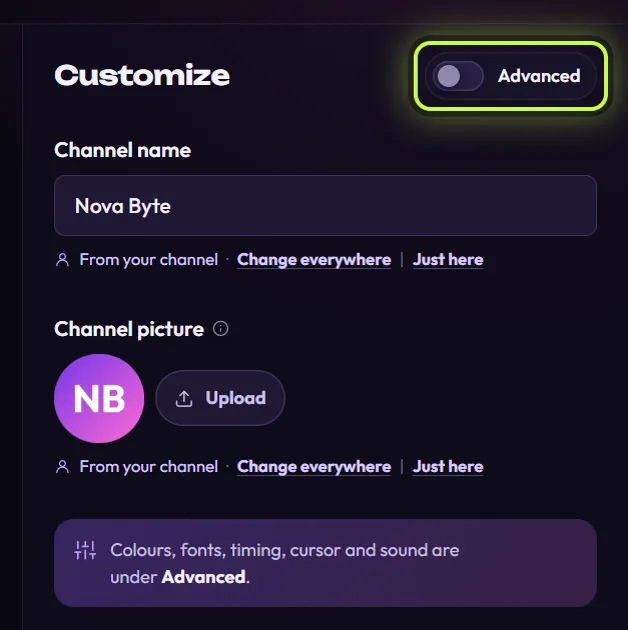
-
The panel now shows every setting, sorted into groups.
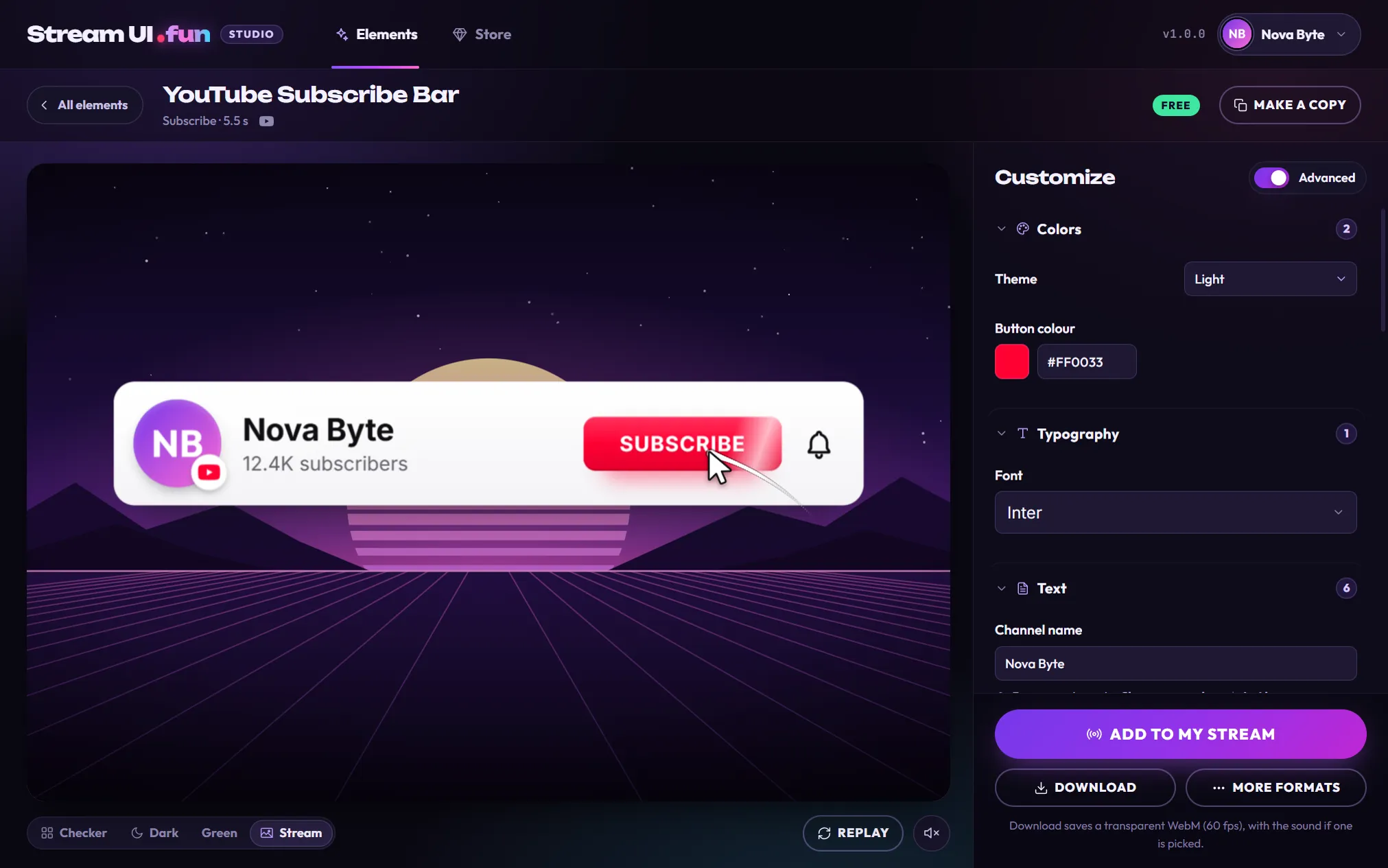
The switch counts for every element, and the app remembers it next time. Turn it off to go back to the Basic view. With Advanced on, the More formats dialog also offers extra video options (Frame rate, Sharpness and Repeat).
How the settings panel works
Section titled “How the settings panel works”- Groups. Settings are sorted into Colors, Typography, Text, Animation, Effects and Advanced. Live widgets from packs can also have Goal and Data groups (see Live widget settings). The number next to a group’s name tells you how many settings it holds. Click a group’s name to fold it away or open it again; the app remembers.
- Pink dot. A pink dot next to a setting’s name means you changed it.
- Reset one setting. Hover a changed setting and click the small reset arrow that appears next to its name. That one setting goes back to how it started.
- Tips. Hover the ⓘ next to a name for a short tip, like “Without the @”.
- Sliders. Drag the slider, or type a number in the box next to it and press Enter. Double-click a slider to put it back to its starting value. Numbers outside the allowed range are brought back into range.
- Number boxes. Some settings, mostly in pack elements, are a number box with − and + buttons. Click them to go one step down or up, or type a number and press Enter. Numbers outside the allowed range are brought back into range.
- Saving. Every change saves by itself, and the preview plays again with it.
Each element has its own mix of settings and its own words for them. The sections below use the YouTube Subscribe Bar as the example and give the other names you may see.
Colors
Section titled “Colors”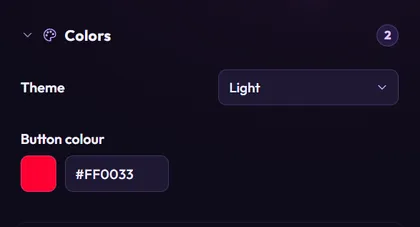
| Setting | What it does | Choices or start value |
|---|---|---|
| Theme | Light or dark look. Some elements call it Tile style, App theme or Name tag style. | Light or Dark (X Follow Tag: Dark (X black)). Most start on Light. |
| Main color | The color of the button, the logo tile or the highlight. Its name depends on the element: Button colour, Brand colour, Like colour, Accent colour and others. | The platform’s own color, like YouTube red #FF0033 or Twitch purple #9146FF. |
| Extra looks | Some elements add more, like Picture ring, Confetti colour, Style (Socials Bar) or Backdrop (YouTube Channel Intro and YouTube End Screen). | Depends on the element. |
To change a color:
- Click the color square to open a color picker and choose a color, or
- Type a color code like
#FF0033in the box next to it and press Enter. If the box turns red, the code isn’t valid and the old color stays.
The Font setting is in the Typography group. Every free element starts with Inter.
-
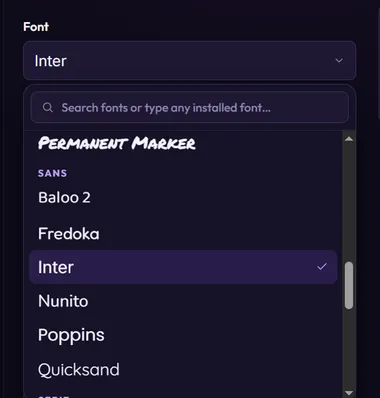
Click the Font box. A list opens, with each font name written in its own font.
-
Scroll the list, or type in Search fonts or type any installed font… to find one quickly. You can use the arrow keys and Enter too.
-
Click a font. The preview switches straight away. Press Esc to close the list without changing anything.
The fonts that come with the app are grouped by style: Halloween, Display, Handwriting, Sans, Serif and Pixel, plus a few common computer fonts under System (Arial, Consolas, Georgia, Impact, Segoe UI and Trebuchet MS). These come with Windows. On your computer some of them, like Segoe UI and Consolas, may not be installed, and the element then shows a similar font instead.
Use a font installed on your computer: type its exact name in the search box and click Use “font name” (marked installed font).
The Text group holds every word and picture in the element. The fields that Basic view shows come first.
| Kind of text | Examples | Good to know |
|---|---|---|
| Name and handle | Channel name, Handle, Twitch handle, Page name | Often filled in from your channel (“From your channel”). Type a handle without the @: the app removes a typed @ for you. |
| Pictures | Channel picture, Profile picture | See Add a picture. Empty shows colored initials. |
| Button words | Button label, Button label after the click | What the button says before and after the cursor clicks it, like SUBSCRIBE and SUBSCRIBED. Up to 16 characters. |
| Counts | Subscriber count, Follower count, Member count, Word after the count | Type a number (12400 shows as 12.4K) or short text. Leave it empty to hide the line. |
| Messages and headlines | Message, Comment, Headline, Tag text | Messages can be up to 150 characters. |
Every box has a length limit that fits the design, so you can’t type past it.
Counts: a count that comes from your channel says From your channel. A count that still shows the element’s sample number says Sample number · Use my real count. Click Use my real count to add your real numbers once, for every element. More in Show your real follower counts.
Timing
Section titled “Timing”Timing settings are in the Animation group.
| Setting | What it does | Range | Starts at |
|---|---|---|---|
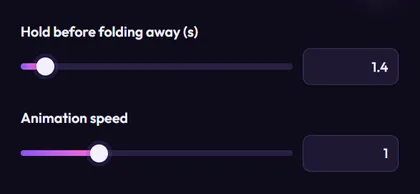
| Hold before … (s) | How many seconds the element stays fully on screen before it animates away. The end of the name matches the element: Hold before folding away (s), Hold before tucking away (s), Hold before fading away (s) and so on. | 0.5 to 15 seconds | Depends on the element (from 0.8 to 4.9 s). YouTube Subscribe Bar: 1.4 s. |
| Time per handle / between highlights (s) | Socials Bar only: how long each handle shows, or the time between highlight waves. | 0.5 to 15 seconds | 4 s |
| Animation speed | Plays the whole animation faster or slower. 2 is twice as fast, 0.5 is half speed. | 0.25 to 3 | 1 |
Steps of the animation. Many elements have switches that add or skip a part of the animation, like Ring the bell after subscribing, Like the video first, Press Follow or Show typing dots before the message. They all start on. Turn one off to skip that part.
A few elements have their own choices here too, like After the click (Twitch Heart Follow Tag), Wipe from (YouTube Channel Intro) or Layout (Socials Bar: All at once or One at a time).
Cursor
Section titled “Cursor”Elements that show a mouse pointer clicking a button have cursor settings in the Animation group. 14 of the 21 free elements have one. Discord Invite Tag, Kick Live Follow Tag, Like Heart Tag, Socials Bar, Text Message Pop-up, TikTok Glitch Follow Tag and X Follow Tag don’t.
| Setting | What it does | Starts at |
|---|---|---|
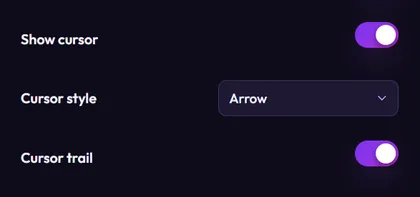
| Show cursor (on phone elements: Show the tap) | Shows or hides the cursor. | On (TikTok Avatar Follow: off) |
| Cursor style | Arrow, Hand or Touch (a fingertip tap). | Arrow (phone elements and TikTok Avatar Follow: Touch) |
| Cursor trail | Draws a curved trail behind the cursor as it moves. | On |
The trail only shows with the Arrow and Hand styles. If it seems to do nothing, the line under it explains why: The cursor is off, so there’s no trail or Only the arrow and hand cursors draw a trail.
Sound and effects
Section titled “Sound and effects”The Effects group holds the element’s sound and its decorative extras.
Every free element starts silent. To add a sound:
-
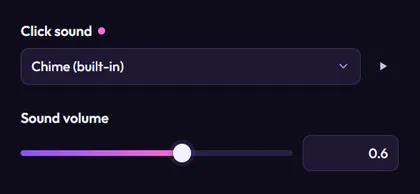
Open the Effects group and find the sound setting. Its name fits the element: Click sound, Tap sound, Pop sound, Press sound, Follow sound or Notification sound.
-
Pick a sound: Chime (built-in), Spooky (built-in), Bell (built-in), Coin (built-in), Pop (built-in) or Whoosh (built-in). It plays once in the preview, and the preview’s sound turns on.
-
Click the play button (▶) next to it to hear it again.
-
Drag Sound volume to set how loud it is: from 0 (silent) to 1 (full). It starts at 0.6.
To go back to silent, pick None.
Where you hear the sound:
- On your stream. The sound plays with the element. In OBS it’s part of the element’s source, so it shows up in OBS’s Audio Mixer.
- In videos. Download includes the sound when one is picked. In More formats you can turn Include the element’s sound on or off. GIFs never have sound.
Decorative extras. Many elements have switches for small touches, like Hearts on follow, Confetti on the like, Sparks on the like, Flowing gradient border or Show the LIVE badge. They all start on. Turn them off for a calmer look.
The Advanced group (the last one in the panel) holds Scale.
| Setting | What it does | Range | Starts at |
|---|---|---|---|
| Scale | Makes everything in the element bigger or smaller. | 0.25 to 3 | 1 |
Two free elements have one more setting here: Row alignment on the Socials Bar (Left, Centre or Right) and Video frames on YouTube End Screen (One video (subscribe left) or Two videos (subscribe centre), to match where you place YouTube’s end-screen elements).
Live widget settings (packs)
Section titled “Live widget settings (packs)”Chat and goal widgets from packs bring their own settings. The names can differ a little from pack to pack.
- Goal group (goal widgets): Goal target, Starting progress, Counts (what fills the bar: Subs (gifts count), Tips (amount), Cheers (bits / 100), Follows, Any event (+1) or Manual only) and Remember progress across reloads.
- Data group: on chat widgets, Max messages, Hide after (s, 0 = never), Hide !commands and Ignore users (comma separated).
- Twitch channel (in the Data group of both kinds, sometimes called Twitch channel (live events)): the Twitch channel whose chat the widget reads in OBS (or another app’s browser source). It fills in from your channel. In a StreamElements overlay it isn’t used: StreamElements sends the chat and events there.
- Demo mode (many widgets, in the Advanced group, like Demo mode (fake chat) or Demo mode (fake events)): shows made-up data on your stream too, so you can place the widget. Turn it off before you go live.
What each one does, and which events reach the widget: Use elements from packs.
If an element has no settings at all, Advanced view says This element has no settings.
Changed your mind?
Section titled “Changed your mind?”Hover a changed setting and click its reset arrow, or use Reset all changes at the bottom of the panel to start over. See Make copies and reset changes.